Set up your profile once, add your skills and the right roles come to you. This guide walks you through every step, and most of them take less than a minute.
A note on words. This guide calls you a "job seeker". Your board may use a different word, eg member, learner, graduate, alumni or individual, and may call roles "jobs" or "opportunities". The steps are the same.
About the screenshots. They come from a sample board. Yours will show your own organisation's name, logo and colours, and some boards have slightly different options.
Prefer quick answers? Browse the knowledge base, or contact the organisation that runs your board if you need help with an invite or a join request.
1. Join your board
How you join depends on how your organisation has set the board up.
Which situation are you in?
Open your board's link and look at what's on screen.
- A globe icon (with "Public" on a computer), a list of roles and a "Join now" button: Anyone can join. No approval needed. See "Join a public board" below.
- A padlock icon (with "Private" on a computer), no roles listed and a "Request to join" button: The organisation checks who joins. See "Request to join a private board" below, or use your invite email.
- An invite email from your organisation: You've been personally invited. See "Join with an invite" below.
- A message that you need an invitation, and no way to request one: The board is invitation only. See "Invitation-only boards" below.
Join a public board
- Open your board's link, eg from your organisation's website.
- In the "Looking for opportunities?" box, next to "Job seeker?", press "Join now". On a phone, scroll down a little to find it.
- Fill in "Create your profile" (see Set up your profile) and press "Create my profile".
- Set your password on the "Password" step. You're in straight away.

On a public board, "Join now" sits in the "Looking for opportunities?" box. On a phone, scroll down past the board details to find it.
You can browse the roles and use the filters before you join. To open a role, view your matches and get alerts, join first.
Request to join a private board
- Open your board's link. You'll see a padlock and "Private". Roles stay hidden until you're a member.
- Next to "Job seeker?", press "Request to join".
- Fill in "Create your profile" and press "Create my profile", then set your password.
- Your request goes to the organisation that runs the board. While you wait, your request shows as waiting for a response. You can see it under "Marketplaces" on your profile.
- You'll be notified once you're approved. After that, open the board and start browsing.

A private board shows a padlock and a "Request to join" button instead of "Join now".
Asking again won't create a second request. If you try again you'll just see that your request is still pending. If you've waited a while, contact the organisation that runs the board.
Join with an invite
- Open the invite email from your organisation and press the link in it. The link is personal to you and tied to the email address it was sent to.
- It takes you straight to "Create your profile". Fill it in and finish the steps. You're signed in and joined automatically.
- Already have a Spacewalk account, eg from another board? You'll be asked to "Sign in" first, and the board is then added to your account.
Link expired or already used? Each invite link works once. If it has expired, already been used or no longer works, you'll be shown how to carry on. If you already set up your account with it, just sign in. If you're still stuck, ask the organisation that invited you to resend your invite.
Invitation-only boards
Some boards are invitation only. If you don't have an invite you won't see the roles, and there's no button to request access. Contact the organisation that runs the board, eg your training provider, association or careers team, and ask them to invite you. When the invite arrives, follow "Join with an invite" above.
Sign in next time
- Open your board and press "Sign in" (next to "Already have a Spacewalk account?"). If nothing happens, tap it again.
- Enter your "Email address" and press "Continue".
- Enter your "Password" and press "Sign in". Forgotten it? Press "Forgotten password?".

Sign in with your email first. The password box appears after you press "Continue".
One account works across every board you belong to. If you're already signed in but not yet a member of a board, you may see a "Join Marketplace" button on it instead.
2. Set up your profile
Your board knows enough about you to send you roles that fit. It takes about two minutes.
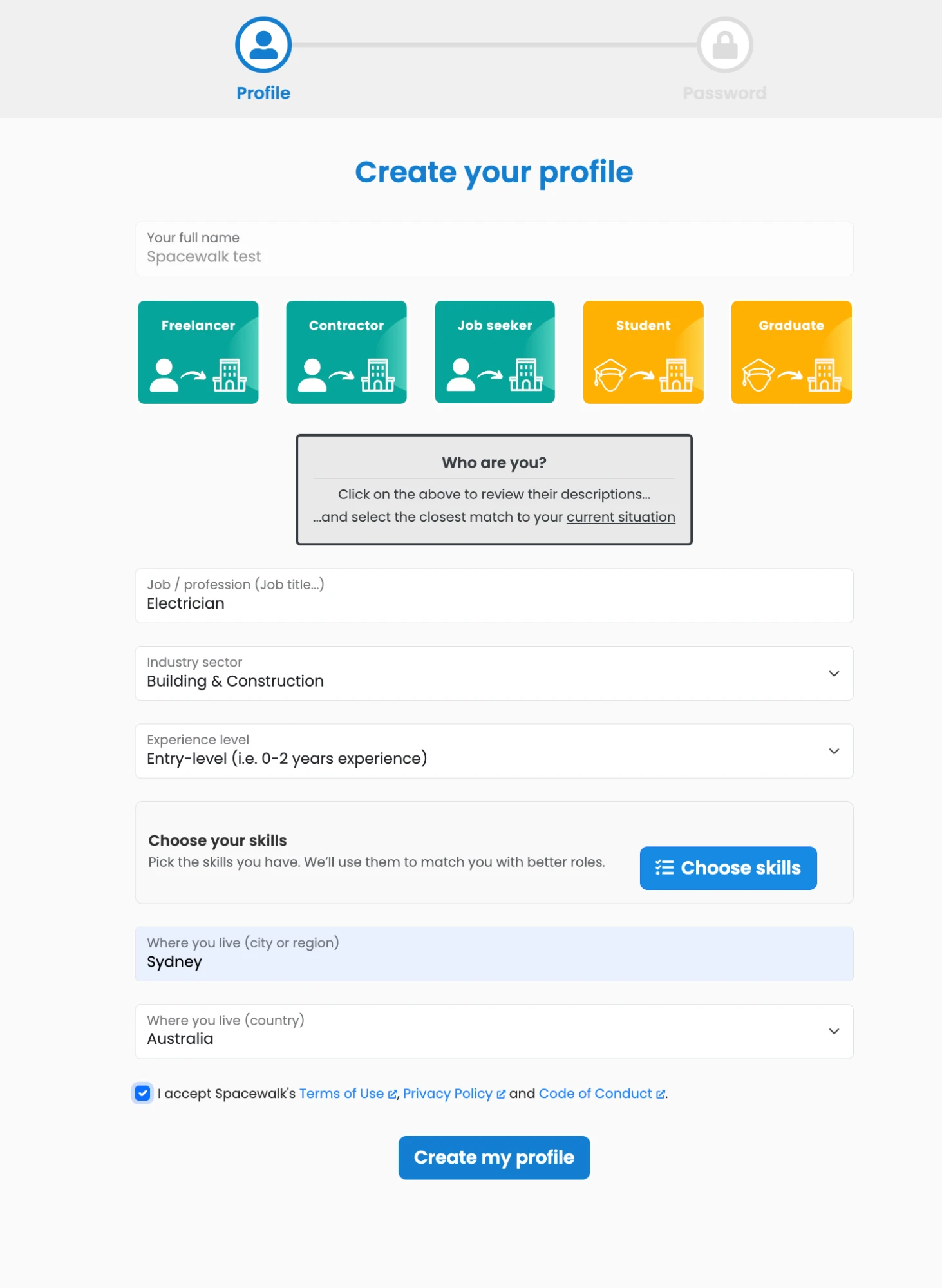
"Create your profile" on a board with a custom skills section. Press "Choose skills" to add yours.
- "Your full name" - type your name as you'd like employers to see it.
- Skills - add your skills. Depending on your board this is either a skills list or a "Choose skills" button. See Add your skills.
- "Who are you?" - tap the card that best matches your current situation. Each card shows a short description when you tap it:
- "Freelancer" - self-employed, working across one or more clients. Prefers short, task-based work.
- "Contractor" - independent or agency based, usually one client at a time. Prefers longer contracts.
- "Job seeker" - employed or recently unemployed and looking for your next role. Prefers permanent salaried roles.
- "Student" - studying at college or university. Prefers internships, secondments, gigs or part-time work.
- "Graduate" - finishing or just finished university and looking for your first role. Prefers permanent salaried roles or internships.
- "Job / profession (Job title...)" - the role you do or want, eg "Electrician". The example changes to suit the card you picked.
- "Industry sector" - pick the closest match, eg "Building & Construction".
- "Experience level" - "Entry-level (i.e. 0-2 years experience)", "Mid-level (i.e. 2-5 years experience)", "Senior (i.e. 5+ years experience)" or "Not specified".
- "Where you live (city or region)" - eg "Sydney".
- "Where you live (country)" - pick your country.
- Tick the box to accept Spacewalk's Terms of Use, Privacy Policy and Code of Conduct.
- Press "Create my profile".
- On the "Password" step, choose a password. That's it, you're set up.
Not sure which card to pick? Choose the one closest to where you are today. It helps your board show you the right kind of work, eg internships for students.
3. Add your skills so roles find you
You get matched to roles that need what you can do, without searching for them.
Why your skills matter most: If you see a custom skills section when you set up your profile, complete as much of it as you can. Your board uses these skills, certifications and qualifications to match you with roles, so the more you add, the better your matches will be.
Your skills are what power your matches. They decide which roles show a "Skills Match" badge, what the "Matching Skills" filter finds and which roles appear in your job-match emails.
If your board uses a skills list
- On "Create your profile", open the "Skills" list (it says "Pre-selected skills, or add your own...").
- Pick the area closest to your work, eg "Cyber Security". Your profile is pre-filled with a starter set of skills. A counter shows how many you have, eg "Skills 25".
- Press the red cross on any skill you don't have.
- Use "Search skills" to add more of your own. Or pick "Enter your own skills" to start from scratch.

Pick an area and your profile is pre-filled with a starter set of skills. Remove any you don't have and search to add more.
If your board has a custom skills section
Some boards add a "Choose your skills" panel: "Pick the skills you have. We'll use them to match you with better roles."
- Press "Choose skills". A step-by-step window opens, grouped by category, eg "Domains", "Certifications" and "Qualifications".
- Tick each item you have. Every item has a short description to help you choose.
- Use the search box, eg "Search certifications by name or description", to find something quickly. "Select all" and "Clear all" work on the list in front of you.
- Move between categories with the arrow buttons at the top, eg "← Domains" and "Qualifications →".
- Keep an eye on the running counter, eg "1 skills". Close the window with the cross when you're done.
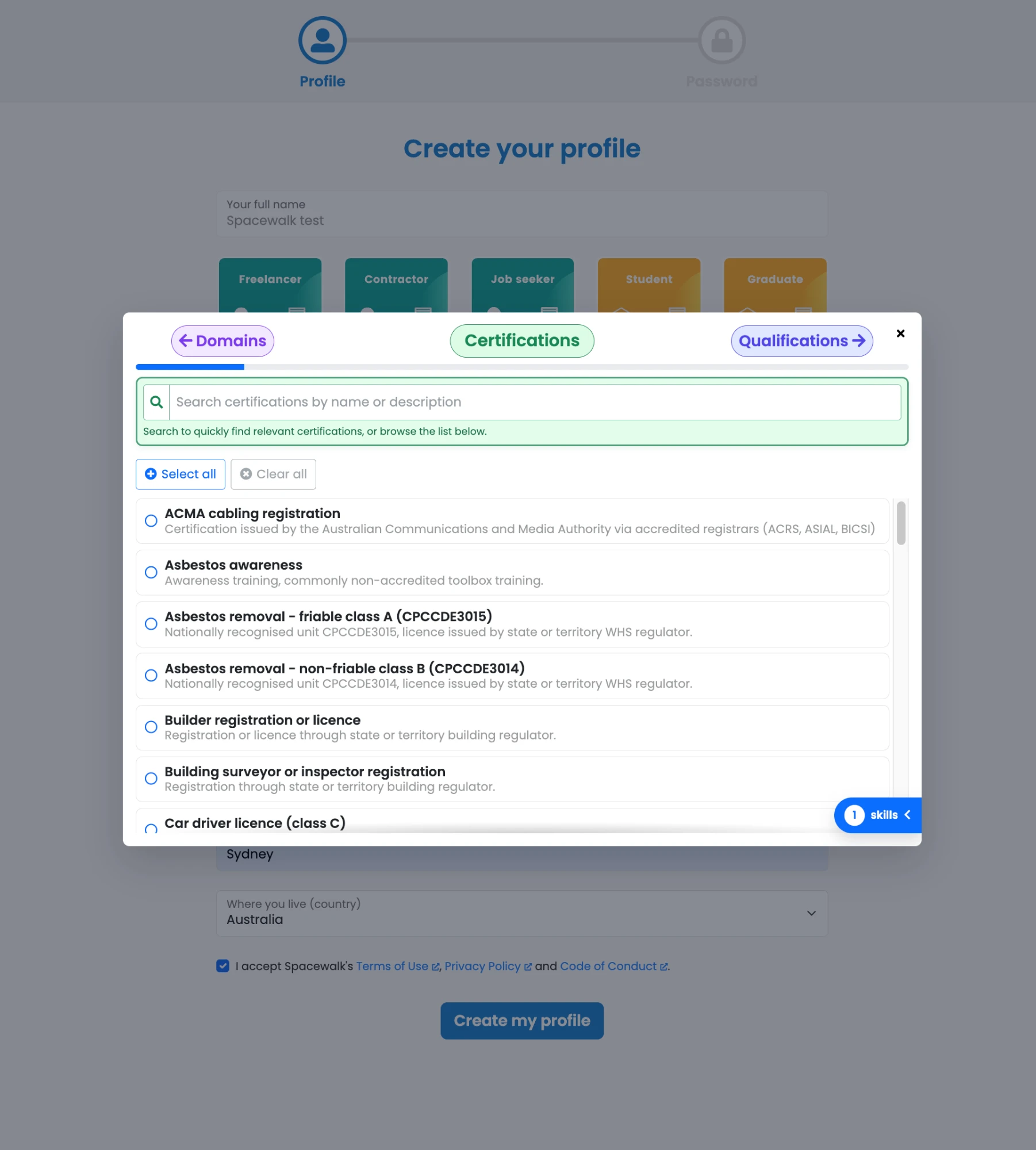
The custom skills window on the "Certifications" step. Tick everything you have, then use the arrows to move on.
You may need to choose at least one skill before you can create your profile.
Update your skills later
- Press the menu icon (top right) and choose "Job Seeker Profile".
- Open the "Skills" tab. Add skills with "Search skills" or press the red cross to remove one.
- Press "Save".

Update your skills any time from "Job Seeker Profile", then "Skills".
Quick add from a role. At the bottom of any role you'll see "Desired skills". Skills you already have are marked with a grey tick. If you have any of the others, press the green plus next to it to add it to your profile straight away.

"Desired skills" on a role. Press a green plus to add that skill to your profile.
4. Find relevant roles fast
You see the roles that suit you first, not everything at once.
Search and filter
- Open your board and scroll to the list of roles.
- Type in "Search by job title, location, employer, and skills" to search, eg "data".
- Narrow the list with the filters on the left. The count at the top shows how many roles match. On a phone, press the filter button next to the search box to see the filters:
- "Matching Skills" - "At Least 1", "At Least 2" or "At Least 3" of your skills. The best place to start.
- "When Posted" - from "Just Listed" to "Any Time".
- "State Or Region" - pick a region and the "Location" list narrows to places in it.
- Also "Categories", "Location", "Type", "Experience Level", "Work Environment", "Office Hours", "Employer" and "Skills".
- Press "clear" on a filter group to reset it, or "clear all" to start again.

Filters on the left, matching roles on the right. The "Skills Match" badges show which roles need your skills.
Filters vary by board. If your board shows work rights on roles, you may see each role's work rights in its details, eg "Sponsorship available". This shows what the employer stated. It isn't a decision about whether you can legally work there.
Your filters are kept in the page address, so you can bookmark a filtered view or share it.
Read the role cards
- "Just Listed" or "Posted yesterday" - how new the role is.
- "Skills Match" or eg "2 Matching Skills" - how many of your skills the role asks for.
- Grey tags show the type of role, eg Job, Contract, Hybrid, Full-Time and Senior.
Open a role

The top of a role, with "Share" and "Apply".
- Press a role's title. The role opens with its details: employer, location, "Available", "Posted" and "Posted by", then "About the role".
- Scroll down for "Desired skills", "About the company" and "View all roles at company".
- Use "Share" to send the role to someone.
Roles you've opened appear in "Recently viewed" on the right of the board, so you can find them again in one tap.
On some boards a role may open in a panel at the side of the list instead of a new page. If a role is for members only and you're not signed in, you'll see a message asking you to join or sign in.
5. Save a search and get job alerts
Your favourite filters are waiting for you each time you sign in, and new matching roles are emailed to you.
- On your board, pick your filters, eg "At Least 1" matching skill, "Past Week" and your region.
- Press "Save search" (next to "FILTERS"). The button appears once you've chosen a filter.
- Check the "Search name". It's filled in from the filters you picked. Change it if you like.
- Under "Email me new matching jobs", choose "Weekly" (the default), "Daily" or "Off".
- Press "Save search". You'll see a message that it's saved and whether emails are on.

Name your search and choose how often to get new matching roles by email.
What happens next
- Your filters come back automatically. Next time you open the board, your saved search is applied for you. The box above the filters shows its name and eg "Search applied · Weekly emails".
- New roles come to you. You get an email with new roles that match your saved search, daily or weekly. Each email covers new roles since your last update, whatever you picked under "When Posted".
- One tidy email. If several searches are due at the same time, they arrive together in one email.
Turning on emails for a saved search replaces your weekly and instant job-match emails for that board, so you don't get the same roles twice.
Change, switch or delete a saved search

Press the arrow on the saved search box to switch searches, see all jobs or manage your searches.
- Press the arrow on the saved search box above the filters.
- Pick a saved search to apply it, "Show all jobs" to see everything or "Manage saved searches".
- In "Manage saved searches", press the pencil to change a search's name or emails, or the bin to delete it. Press "Done" when you're finished.

"Manage saved searches" shows how many of your three searches you've used.
Which search opens next time? The search you last picked is the one applied when you come back. If you choose "Show all jobs", no search is applied automatically until you pick one again.
If you change the filters while a saved search is applied, you'll see "Unsaved changes". Press "Update search" to keep the changes, or "Save as new search" to keep both.
You can keep up to three saved searches on each board. You can also find them on your profile: open "Marketplaces" and press the number in the "Saved searches" column to pick up where you left off.

Your boards, saved searches, invitations and pending join requests all appear under "Marketplaces".
Who can see them? The people who manage your membership of the board can see your saved searches. They use them to help you find suitable roles.
6. Job-match emails
When a new role matches your skills, you hear about it without having to look.
- Job-match emails. When a new role matches the skills on your profile, you may get an email about it. These are on unless you turn them off.
- Weekly roles email. If your board has one, you'll also get a weekly email of new roles, with the skills you match highlighted.
- Saved search alerts. See Save a search.
Turn job-match emails on or off
- Open the menu (top right) and choose "Job Seeker Profile".
- Use the "Job-match notifications" switch at the top right. It saves straight away.
Getting roles that don't fit? Rather than switching emails off, try refining your skills. Remove ones you don't use and add more specific ones. Your matches will get sharper.
The bell icon at the top of the page shows in-app notifications, eg a welcome message when you join a board. Press "Dismiss" to clear one.

In-app notifications sit behind the bell.
7. Apply for a role
You apply in a few taps with the right CV.
Set up your CV library first
- Open the menu (top right), choose "Job Seeker Profile" and open the "CV Library" tab.
- Press "Upload CV". You can store up to five CVs, eg one for office roles and one for site roles, then choose the one that fits best each time you apply.

Add up to five CVs in "CV Library".
Apply
- Open the role and press "Apply" (next to "Share" at the top).
- What happens next depends on the employer:
- Apply on your board. You apply without leaving the board. Pick a CV from your library or upload a new one. Some roles also ask a few screening questions.
- Apply on the employer's website. If the "Apply" button shows a small arrow icon, it takes you to the employer's own application form. Finish your application there.
When you apply on your board, the employer sees your profile and the CV you chose. When you're sent to the employer's website, they don't see your board profile. They only see what you give them on their site.
8. Keep track of your applications
Every role you've gone for is in one list.
- Open the menu (top right) and choose "My Applications".
- Each row shows the "Employer", "Role", "Applied via", "Posting date", "Application date", "Status" and your "Matching skills".
- "Applied via" tells you whether you applied on the board or opened the employer's own application link. You can filter by whether a role is still open or has closed.
Before your first application you'll see "Applications you submit will appear here."

"My Applications" tracks roles you applied for on the board and roles you opened on an employer's site.
On a phone, swipe the table sideways to see every column.
9. Stay in control of your account
Your details are up to date and you know who sees what.
Your profile, at a glance
Open the menu (top right) and choose "Basic Profile", "Job Seeker Profile" or "My Applications". Your boards are listed under "Marketplaces".

The menu (top right) takes you to your profile, applications and boards.
Your profile has four tabs:
- "Basic Profile" - "Full name", "Role or job title", "Country" and "City or region".
- "Job Seeker Profile" - three tabs:
- "Details" - a "Headline" about you and what you're looking for, an "External Profile" link (eg your LinkedIn), "Your current industry sector", "Experience" and "Target gross pay".
- "Skills"
- "CV Library"
- "Marketplaces" - the boards you belong to, plus any invitations and pending join requests.
- "Applications" - see Keep track of your applications.
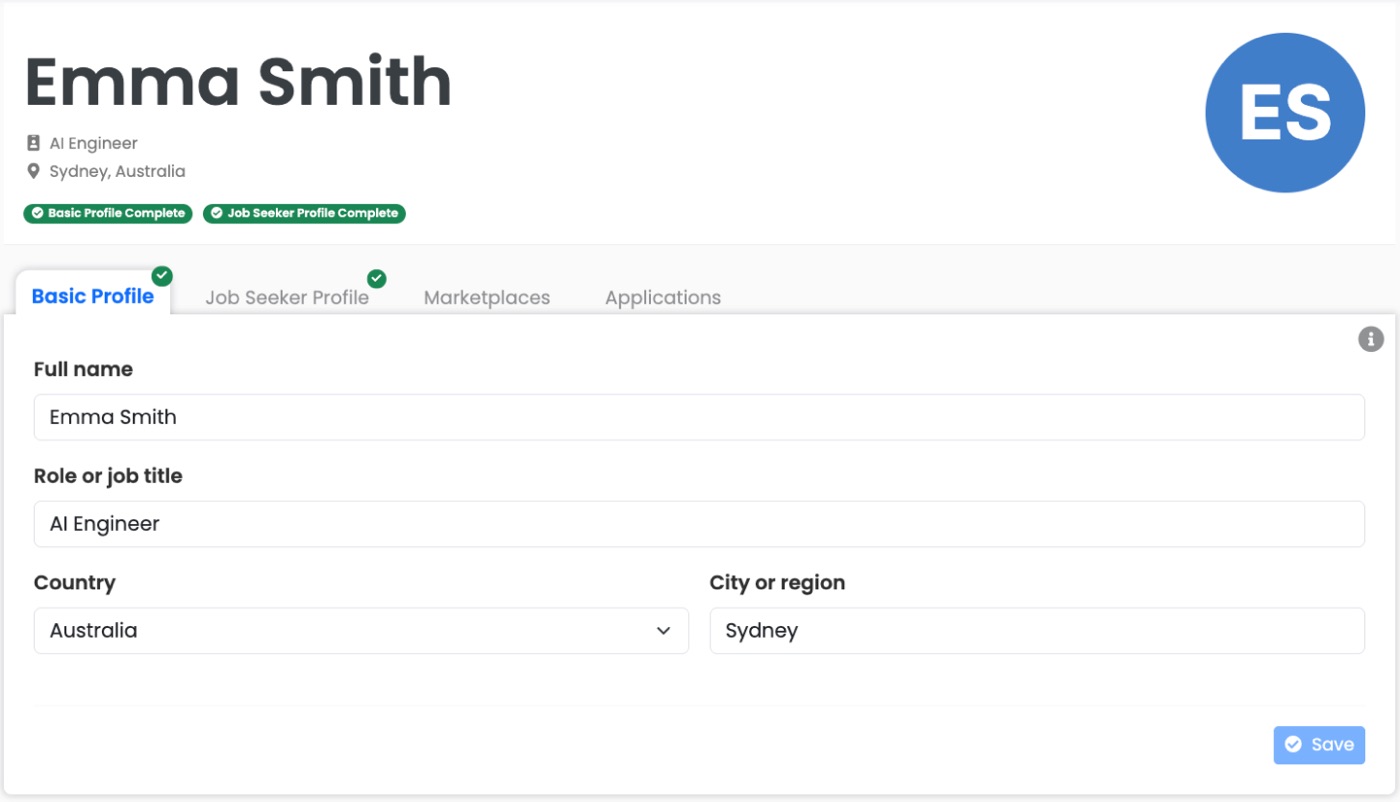
"Basic Profile" holds your name, job title and location.

"Job Seeker Profile" holds your details, skills and CVs, plus the "Job-match notifications" switch.
When your profile is ready you'll see "Ready for matches" and the "Basic Profile Complete" and "Job Seeker Profile Complete" badges. Press "Save" on each tab after making changes.
Pay expectations. "Target gross pay" is optional. Pick a currency, an amount and a period ("Hour", "Day", "Week", "Month" or "Year"). It helps employers see whether a role's budget is likely to meet your expectations. Amounts in other currencies are converted for you.
Who can see your profile?
- The people who run each board you join can see your profile.
- An employer sees your profile when you apply for their role on the board.
- Employers don't see your board profile if you're sent to their own website to apply.
Sign out
Open the menu (top right) and press "Sign out".
Policies
At the bottom of the menu, open "Terms and policies" for the Terms of Use, Code of Conduct, Privacy and Security pages. The Privacy page explains how your data is handled and how to make a request about it.
