Your branded job board mostly runs itself. This guide shows you the handful of things you will actually do - and how little time each one takes.
Prefer quick answers? Browse the knowledge base for short Q&As, or see what's new in the changelog.
1. Get started and find your way around
Log in
- Go to app.gospacewalk.com or directly to your board's web address (your personalised link, ending in .app.gospacewalk.com).
- Sign in with your email. You land on your board's home page.
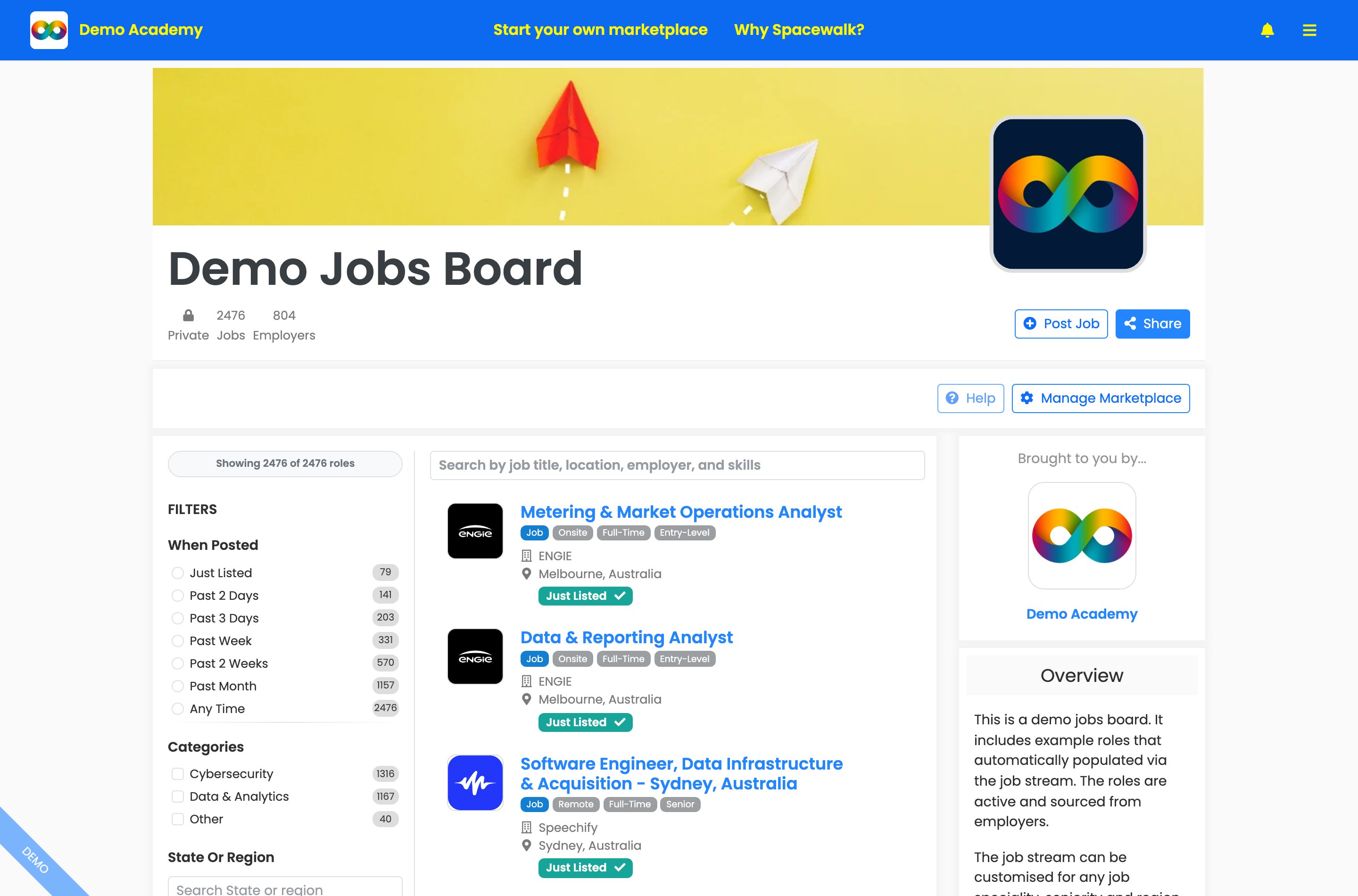
Your board home - branded header bar, board name, the "Private" badge and your "Jobs" and "Employers" counts, with "Post Job", "Share" and "Manage Marketplace".
The two places you'll work from
- Your board (the public view) - what your members see. From here you can post a role, "Share", open "Help" or jump into the controls with "Manage Marketplace".
- "Manage Marketplace" (the control room) - five tabs: "Overview", "Customisation", your members tabs (for example "Employers" and "Job seekers" - these follow your own terminology) and "Analytics".
The sidebar menu and notifications
- Press the menu icon (top right) to open the sidebar. Your most-used places are grouped here: "Tips and reminders" (suggestions such as adding an announcement card), "Manage" (your company, "Marketplaces", "Roles" and "Add role", which opens the post form straight away, plus "Skills" once custom skills is turned on), "Managed marketplaces" (one-click links to each of your boards' control rooms), "Account" ("Profile", "Notification Settings" and "Sign out") and "Terms and policies".
- Press the bell icon to open the "Notifications" sidebar - updates and alerts are grouped here, and when there's nothing to do it simply says "Nothing needs your attention."
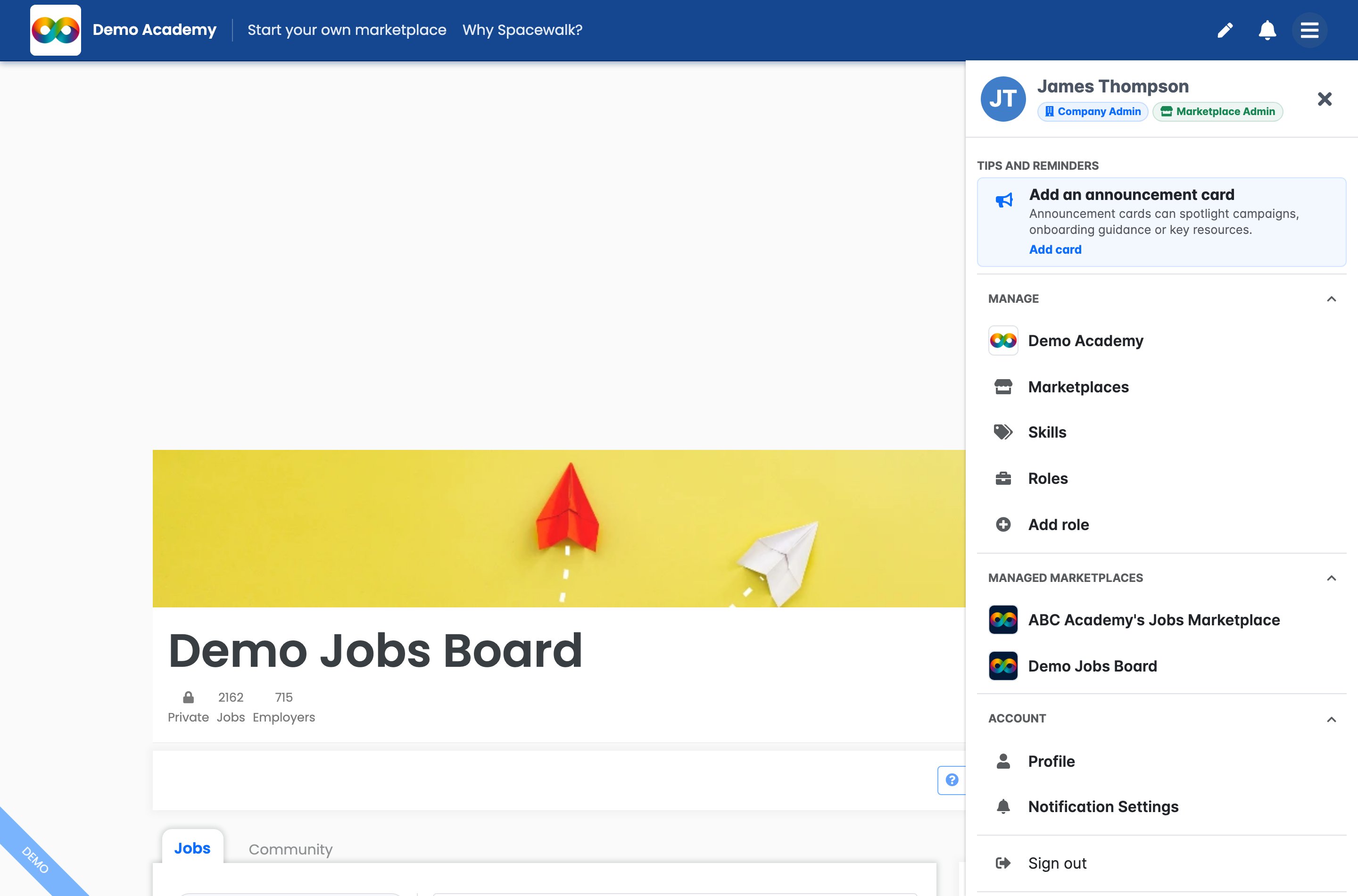
The sidebar: your name and role badges, "Tips and reminders" and the "Manage" group with "Add role", plus "Managed marketplaces" and "Account".
Built-in help on every screen
You don't need to keep this guide open while you work. Every tab in both "Manage Marketplace" and "Manage Company" has a small info button (a circled "i") in the top-right corner - press it and a help panel opens that explains that screen in plain language. Sub-tabs have their own too (for example "Joined", "Invites" and "Requests" on your members tabs), and some section headings add a smaller blue one. The post role form now carries the same help, next to the AI import box, the employer you are posting for and your list of boards.
- Look for the grey info button at the top right of a tab, or the smaller blue one next to a section heading such as "Community" or "Marketplace metrics".
- Press it to open the help panel. For example, the "Overview" tab explains what members see and how your personalised URL works.
- Press it again, or click anywhere else, to close the panel.
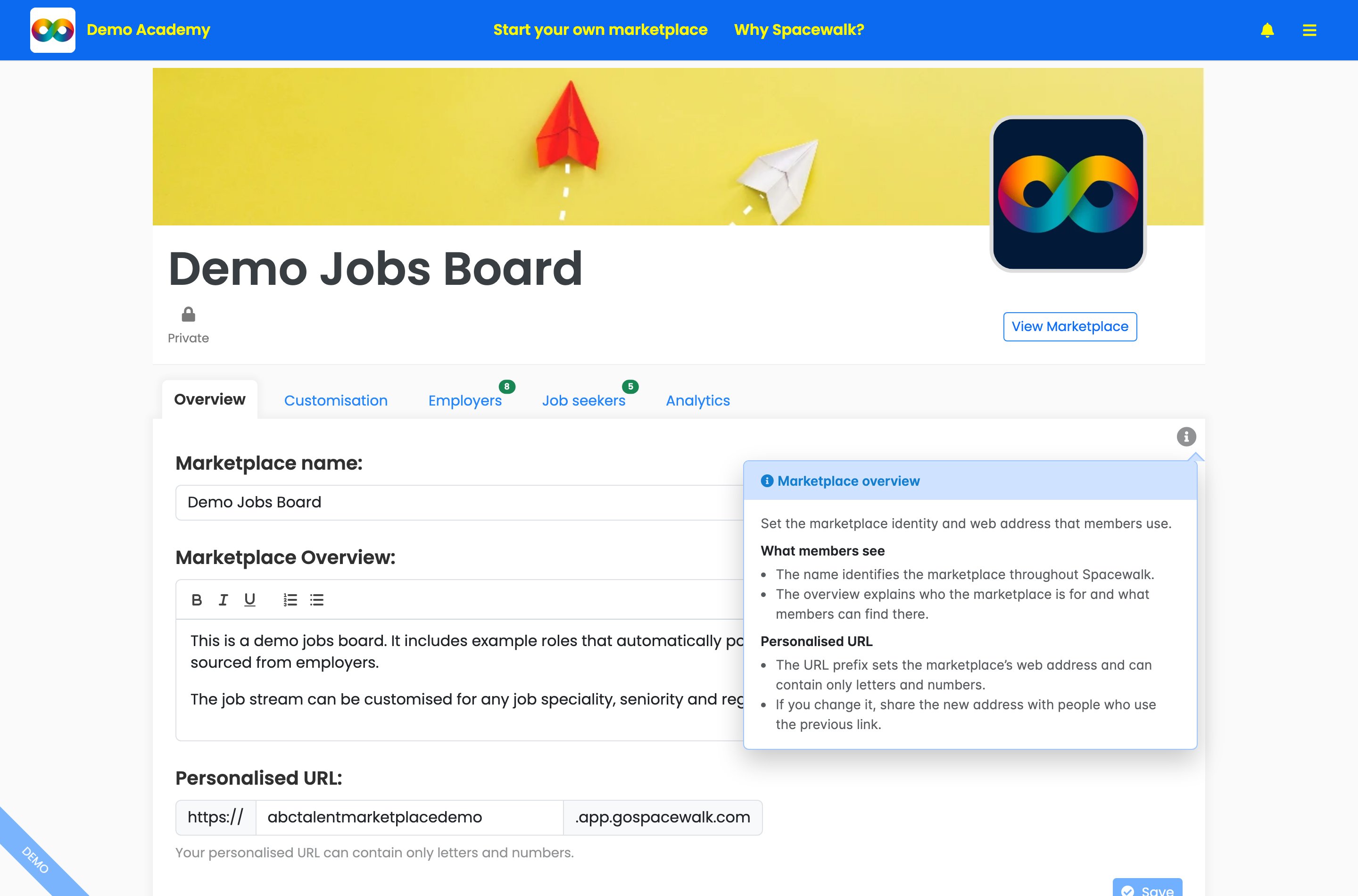
Press the info button on any tab for instant help - here the "Marketplace overview" panel explains what members see and how the personalised URL works.
2. Keep the board full of fresh, relevant jobs
Your automatic job stream (we set this up for you)
The job stream is the feed of fresh, relevant roles that flows onto your board automatically. You don't build it yourself in the app. You tell us the kind of roles you want - things like job titles, skills, seniority and where the roles should come from - and we configure the stream for you. Sourcing can now be narrowed to particular states, provinces or regions rather than whole countries, so a board built around one part of the country isn't filled with roles from the other side of it. Roles are sourced directly from employers (not scraped from job-board aggregators), so they're real and current - and the stream can be customised for any job speciality, seniority and region, globally.
- Decide the criteria for the roles your members care about.
- Send those criteria to your Spacewalk contact (or ask us at "Help").
- We set the stream live and new matching roles appear on your board on their own - marked "Just Listed" when they're brand new.
Members get better ways to find stream roles too: filters for "When Posted" (from "Just listed" to "Any time"), "Categories", "State Or Region", "Location", "Source" and more. To change what the stream brings in, just tell us the new criteria - there's nothing to reconfigure on your side.
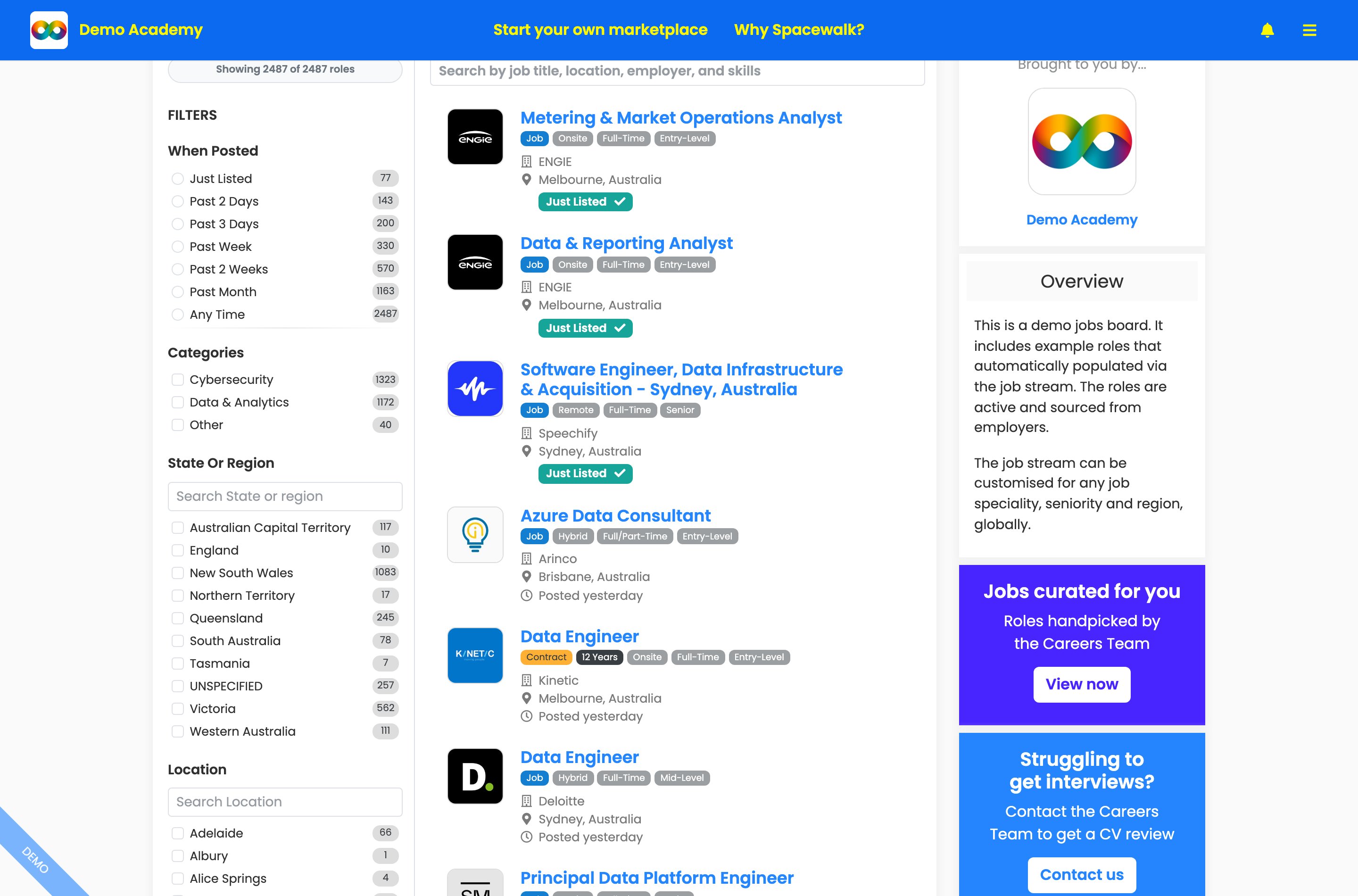
Job stream roles arrive on their own, tagged "Just Listed". Members filter by "When Posted", "Categories", "State Or Region" and more.
Keep members engaged automatically
- Go to "Manage Marketplace", then "Customisation", then "Settings".
- Under "Engagement", turn on the Weekly "Job Stream" Opportunities Email to keep members engaged with weekly role matches by email.
- Press "Save".
Add a single role yourself, in seconds, with the AI importer
When you want to add one specific role, you don't have to type it all out. Paste a link or the text and Spacewalk fills in the details for you.
- On your board, press the post button (labelled "Post Job" or "Post Opportunity", following your terminology).
- Under "Use AI to pre-fill this form", choose "From URL" and paste the job posting's web address, then press "Import". (Or choose "From Text" and paste the job description.)
- Check the details it filled in - role title, description, skills, country, location, type, work environment, hours and experience level.
- Under "Employer shown on this role", confirm the employer applicants will see (your own company is selected by default, so press "Change employer" to pick or add another - see below).
- Under "Post opportunity to..." you get one row per board you can post to, each showing its "Type" (for example "Invite-only") with "Display" and "Featured" switches side by side. Turn "Display" on for every board the role should appear on, and "Featured" on to give it prominence there.
- Set how people apply under "Application method": "Receive applications on Spacewalk" or "Redirect to an external application form / ATS" (then paste your "ATS URL").
- Press "Publish" (or "Save as Draft" to finish later).
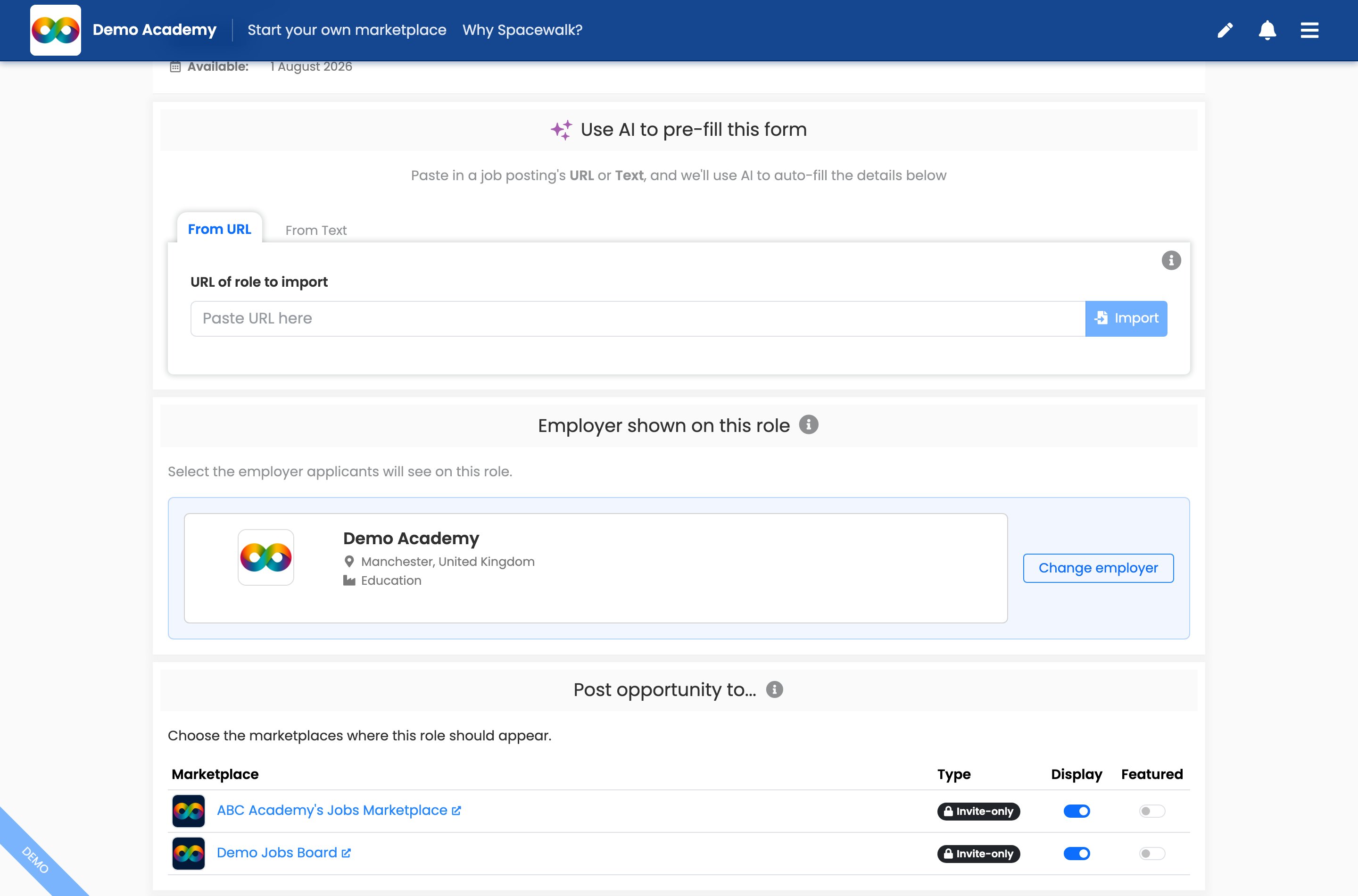
"Post New Opportunity" - paste a link under "Use AI to pre-fill this form", confirm the employer, then set "Display" and "Featured" for each board under "Post opportunity to...".
Pay, budgets, work rights and locations on a role
- Budget - set a "Budget status": "Specified amount", "Negotiable", "Unpaid" or "Not specified". For a specified amount, choose a "Payment basis" ("Time-based rate" or "Fixed fee"), the amount in any of 40+ currencies and a rate period ("Hour", "Day", "Week", "Month" or "Year"). Tick "Show budget on the role page" if you want candidates to see it in the role header.
- Expected duration - "Permanent", "Fixed term" (with a length and unit from hours to years) or "Not specified".
- More precise locations - as well as country and location, you can set a "State or region" (state, province, territory or region), so members can filter roles by region.
- Work rights - under "Key Facts", say who can be considered for the role by choosing citizen or permanent resident only, full working rights (no sponsorship), sponsorship available or student visa friendly (part-time / casual). Roles start as "Work rights not specified", so existing roles are unchanged until you choose.
- Match notification audience - choose who is notified about the role: only people in the role country, people in the role country plus selected additional countries or people in any country (useful for remote or relocation-friendly roles).
Manage the employer brands you post for
If you post roles on behalf of employer brands, they're managed in one place.
- If you can't see the "Employer profiles" tab, open the menu, then "Manage Company", then "Settings", and turn on "Employer profiles" under "Employer and role reach", then press "Save".
- Open the menu, then "Manage Company", then "Company", then "Employer profiles".
- Press "Add employer profile" to add a brand, or use the search box to find one. Each row shows its location, industry and how many roles it has, with edit, duplicate and delete actions. You can also "Export" the list.
- When posting a role, press "Change employer" to search and "Select" the right profile - or add a new one on the spot.
Tidy the list
- Members can search and filter the board by when posted, category, state or region, location, source, type, experience level, work environment, hours, employer and skills - so even a big board stays easy to navigate.
- You can choose to hide closed roles automatically (see "Make the board look like yours" below).
- Every role card on your board has an actions menu (the button beside the role title), so you can choose "Edit role", "Duplicate role" or "Close role" without opening the role first.
3. Control who is in your community
Choose how people join
- Go to "Manage Marketplace", then "Customisation", then "Settings".
- Under "Marketplace access", pick one: "Public" (anyone can join without approval), "Private" (people join by your invitation or by an approved request) or "Invitation only" (people must be invited to join).
- Press "Save".
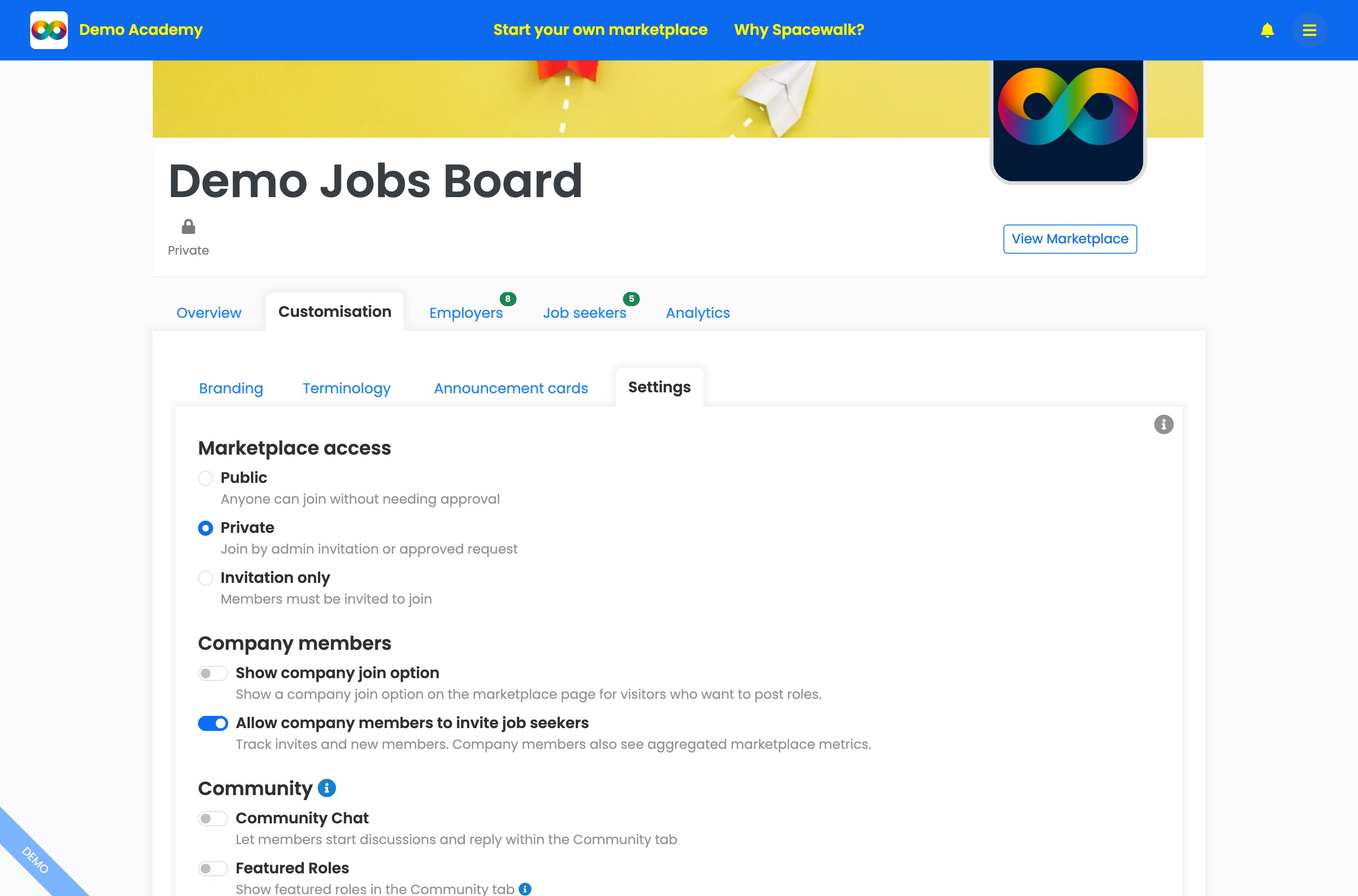
Customisation, then Settings: choose "Public", "Private" or "Invitation only", plus the company-member and community options below.
Not sure which option fits? Press the info button at the top right of the Settings tab - the "Marketplace settings" help panel explains the access and membership choices and the member experience options.
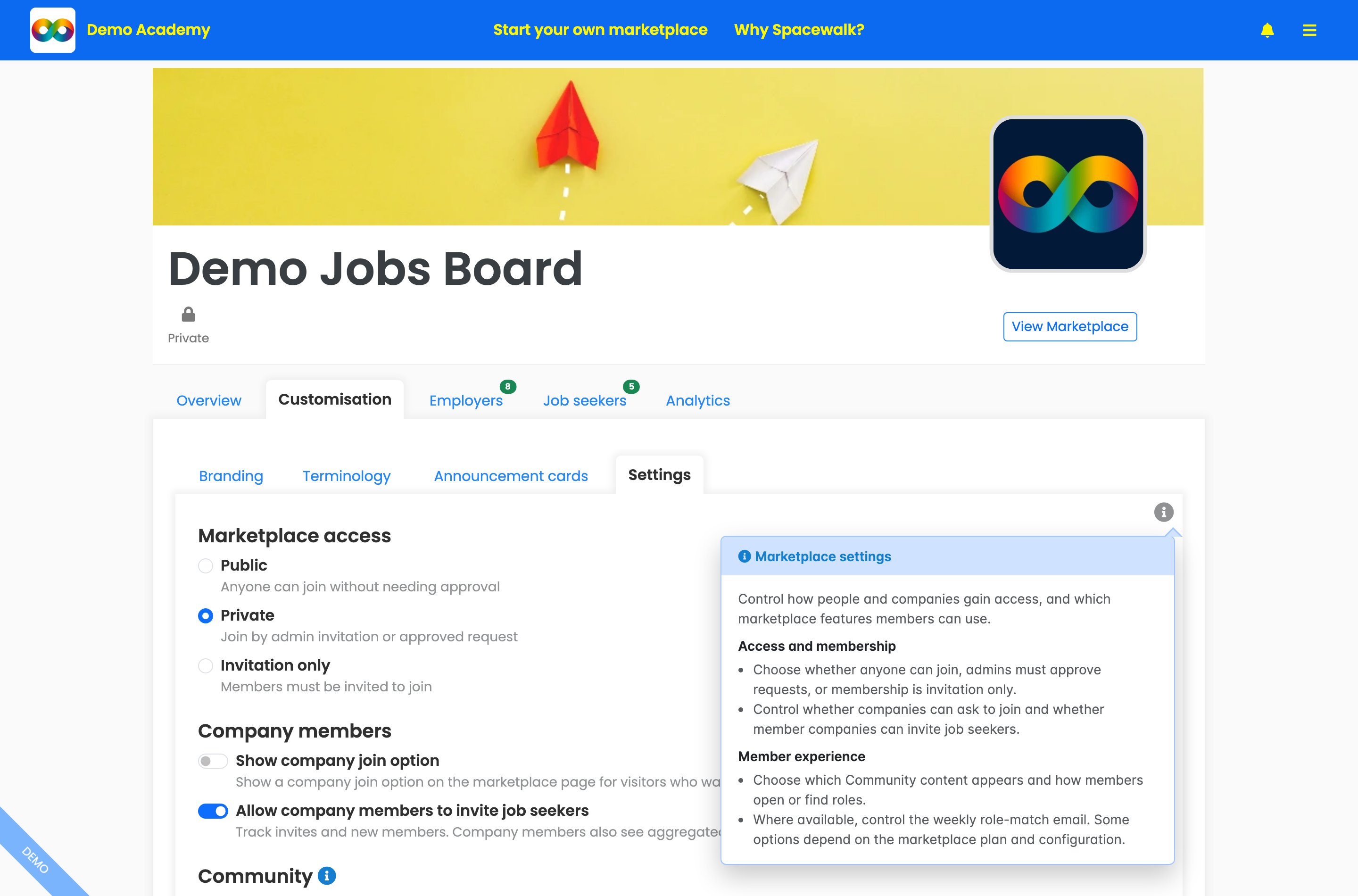
The "Marketplace settings" help panel - a plain-language rundown of every access and membership option, right where you need it.
Invite your talent pool (one by one or all at once)
- Go to "Manage Marketplace", then your individual members tab (for example "Individuals" or "Job seekers"), then "Invites", then "Invite new members".
- For one person, enter a "Name (optional)" and "Email", then press "Add to list".
- For your whole list, press "Paste a list" next to "Inviting several people? Add up to 500 at a time." and paste your people - one per line or several per line, in any mix of formats such as an email on its own, "Priya Patel, priya@example.com", "Sam Rivera <sam@example.com>" or several comma-separated on one line.
- Press "Add valid people to list". Spacewalk checks your list for you: duplicates are merged and anything it can't recognise stays in the box with a clear message so you can correct or remove it, then try again.
- Check the "Review invitations" summary. In the "Ready to send" table you can click a name or email address to edit it or remove someone. Anyone Spacewalk left out appears under "Skipped" with the reason for each one, for example "Already invited or joined", so you know exactly who will not receive an invitation.
- Press the send button, which shows how many invitations are going out (for example "Send 1 invitation").
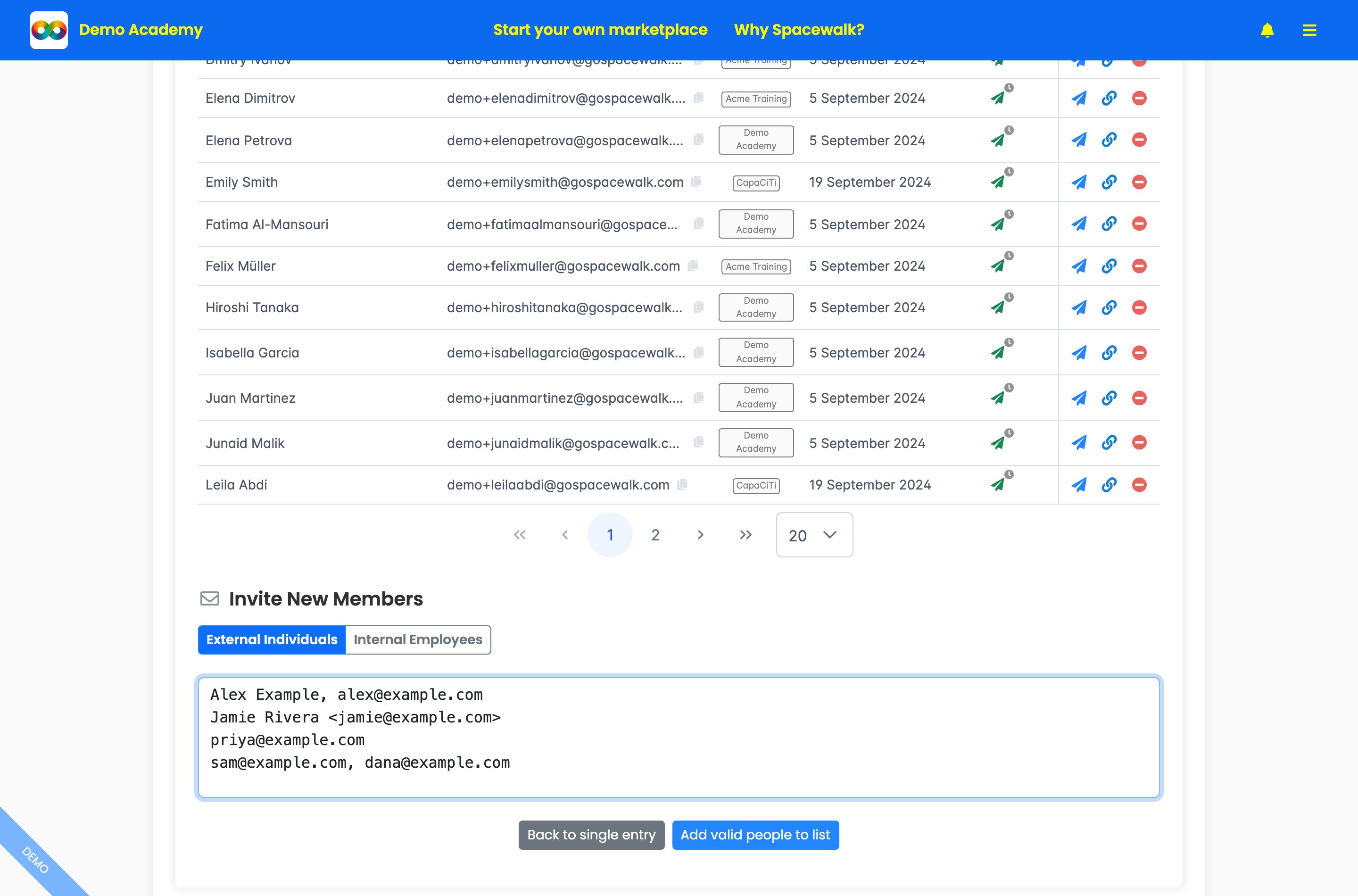
"Invite new members", then "Paste a list": drop in your whole list in any mix of formats, then press "Add valid people to list" to review before sending.
Invite employers / companies
- Go to "Manage Marketplace", then your companies tab (for example "Companies" or "Employers"), then "Invites".
- Under "Invite Company", search by company name and click to invite if found - or invite them by email if not.
- Once they have accepted, forward them our employer guide to posting roles and reviewing applicants so they can get started without you walking them through it.
Approve, track and remove members
- "Joined" shows current members, when they joined and when they were last seen.
- "Invites" has two tabs. "Invitation status" shows who you have invited and how each invitation is progressing, with quick filters for "Awaiting response" and "Ready to resend" and an "Export (All rows)" button. From each row you can resend or copy an invite link. "Invite new members" is where you add people.
- "Requests" shows people waiting for your approval (this is empty when there's nothing pending).
- To remove someone, use the red remove icon in their row and confirm. The same pattern works for companies and for individuals.
The number badges on the members tabs tell you at a glance how many members and pending invites you have. Each members sub-tab ("Joined", "Invites" and "Requests") has its own info button with a help panel explaining what to do there.
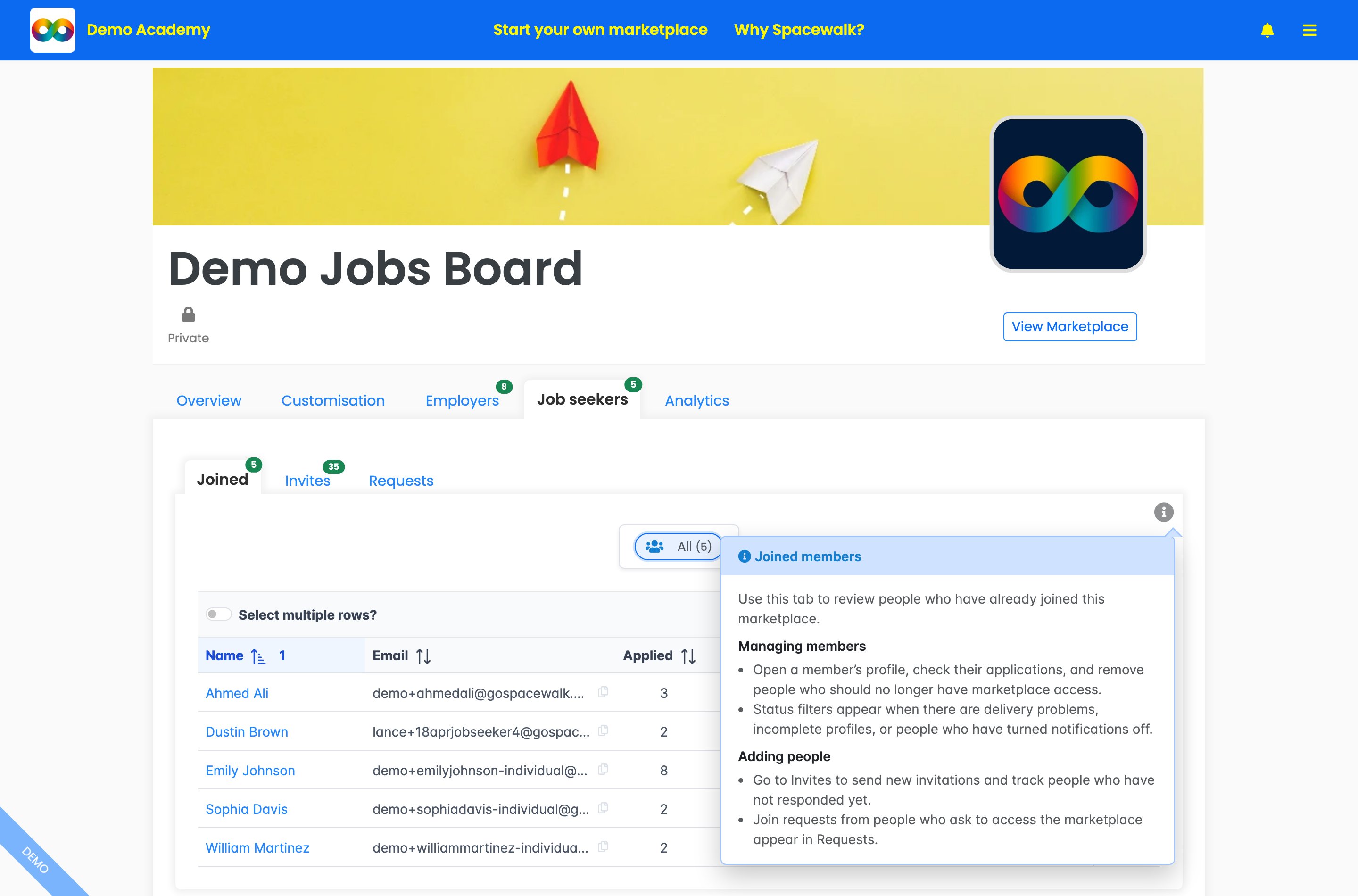
The "Joined members" help panel: open a member's profile, check applications and remove access - with pointers to "Invites" and "Requests" for adding people.
See how your member companies are doing
Working out which employers need a nudge no longer means opening each one in turn. Your companies tab now tells you at a glance.
- Go to "Manage Marketplace", then your companies tab (for example "Companies" or "Employers"), then "Joined".
- Read across the row - "Status" tells you whether the company profile is complete, then "Member Since", "Latest Role Activity", "Admins", "Roles posted" and "Roles open".
- Sort by any column to find the quiet ones, then press "Export" if you want the list outside Spacewalk.
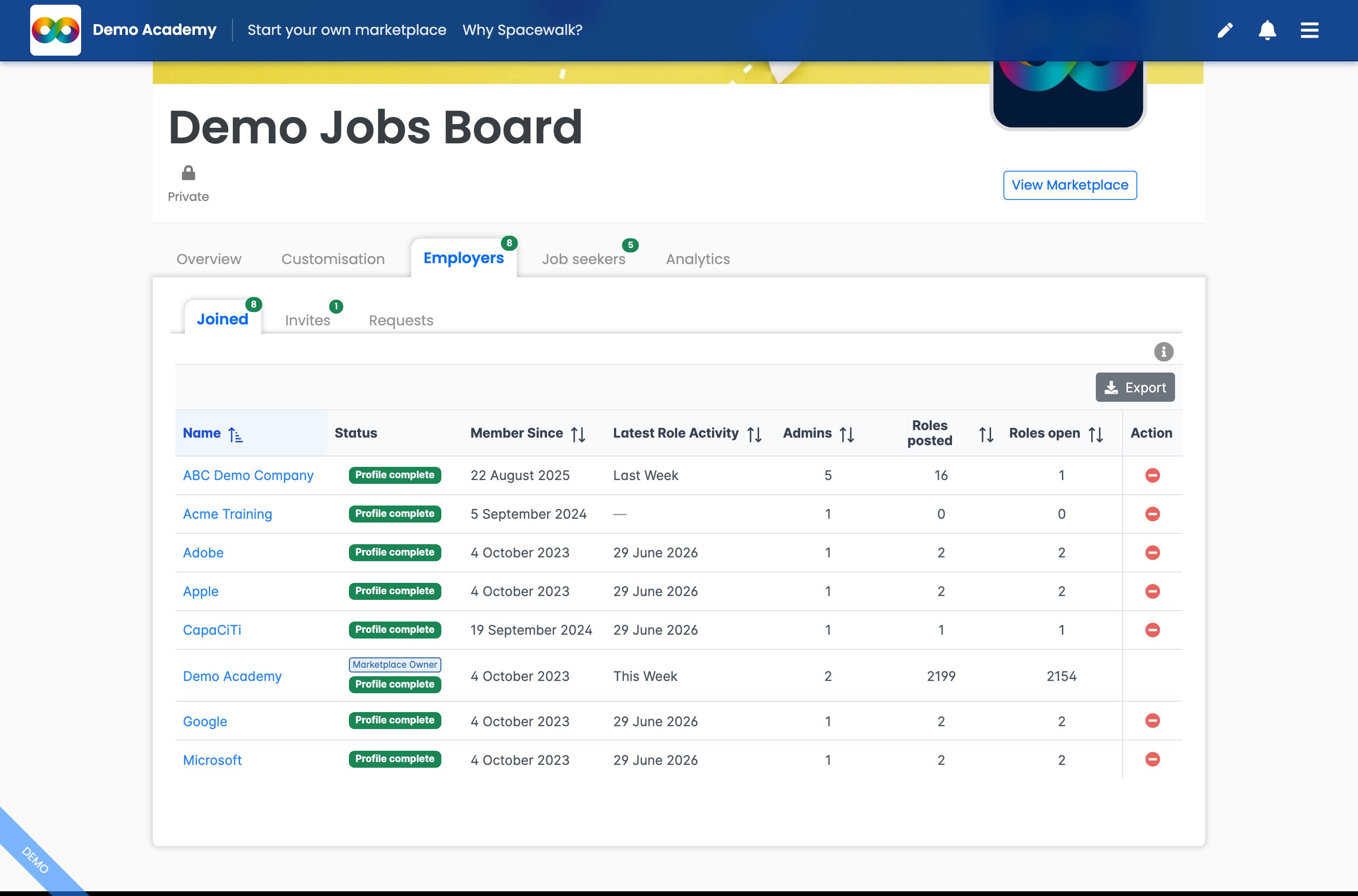
The companies view: profile status, when they joined, their latest role activity and how many admins, roles posted and roles open each one has.
See what your members are looking for
Members can save up to three searches on your board and receive one daily or weekly email of new roles that match. Their saved searches now show you what each person hopes to find, without having to ask.
- Go to Manage Marketplace, then your members tab (e.g. "Job seekers"), then "Joined".
- Read the "Saved searches" column. Each numbered link is one of that member's saved searches, and a dash means they haven't saved one yet.
- Sort by "Saved searches" to bring your most engaged members to the top.
- Press a number to open that search on your board in a new tab. A "Search preview" panel names the search and the member, and the results use their skills, so you see roles the way they do.
- Change the filters to explore if you like. Nothing you do alters the member's search, and the panel reminds you that changes aren't saved. Press "Exit preview" when you're done.
Saved searches are switched on board by board. If you don't see the column, ask us to enable them on yours.
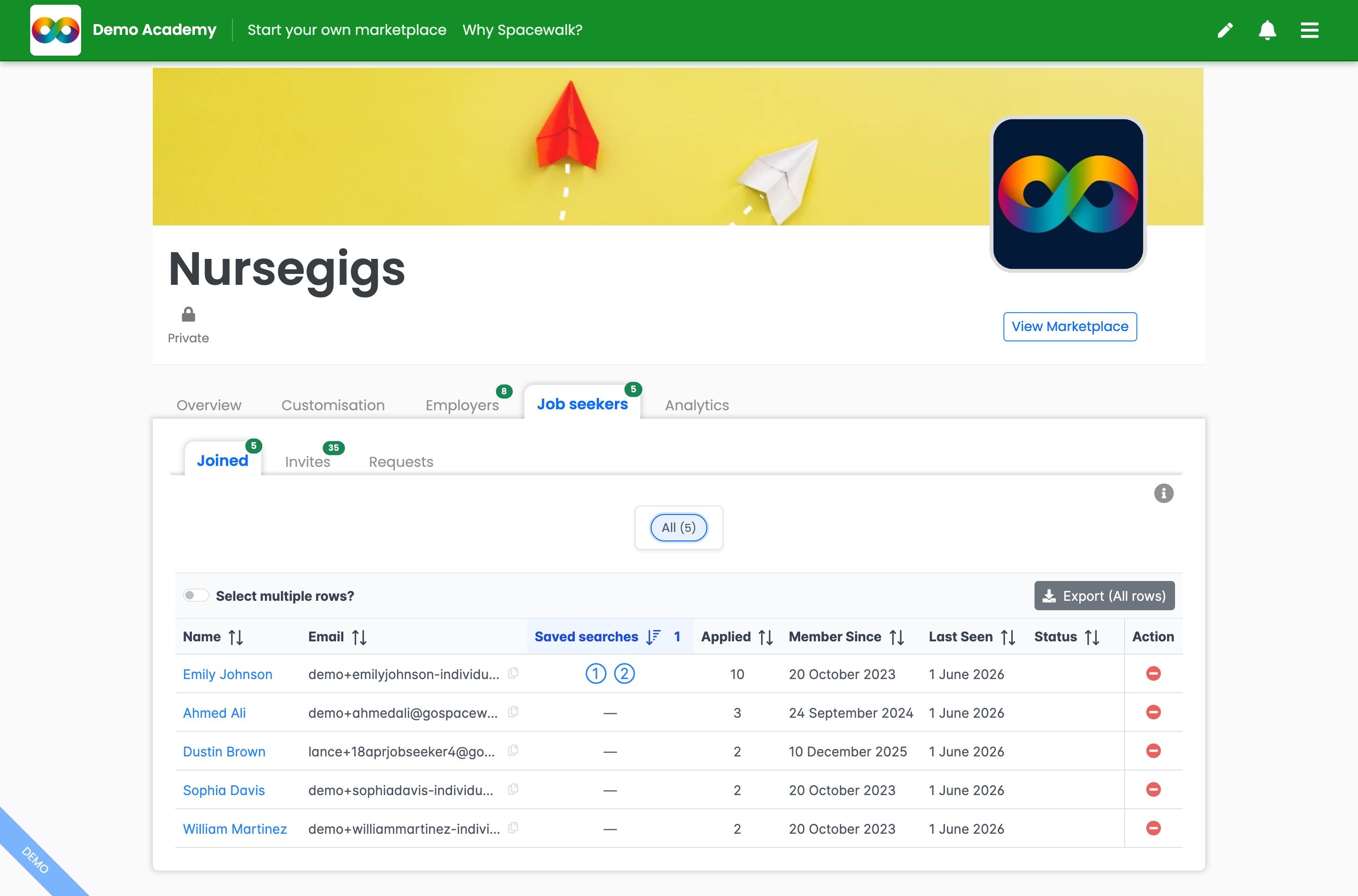
The "Saved searches" column: each number opens one of the member's saved searches, and sorting the column puts your most engaged members first.
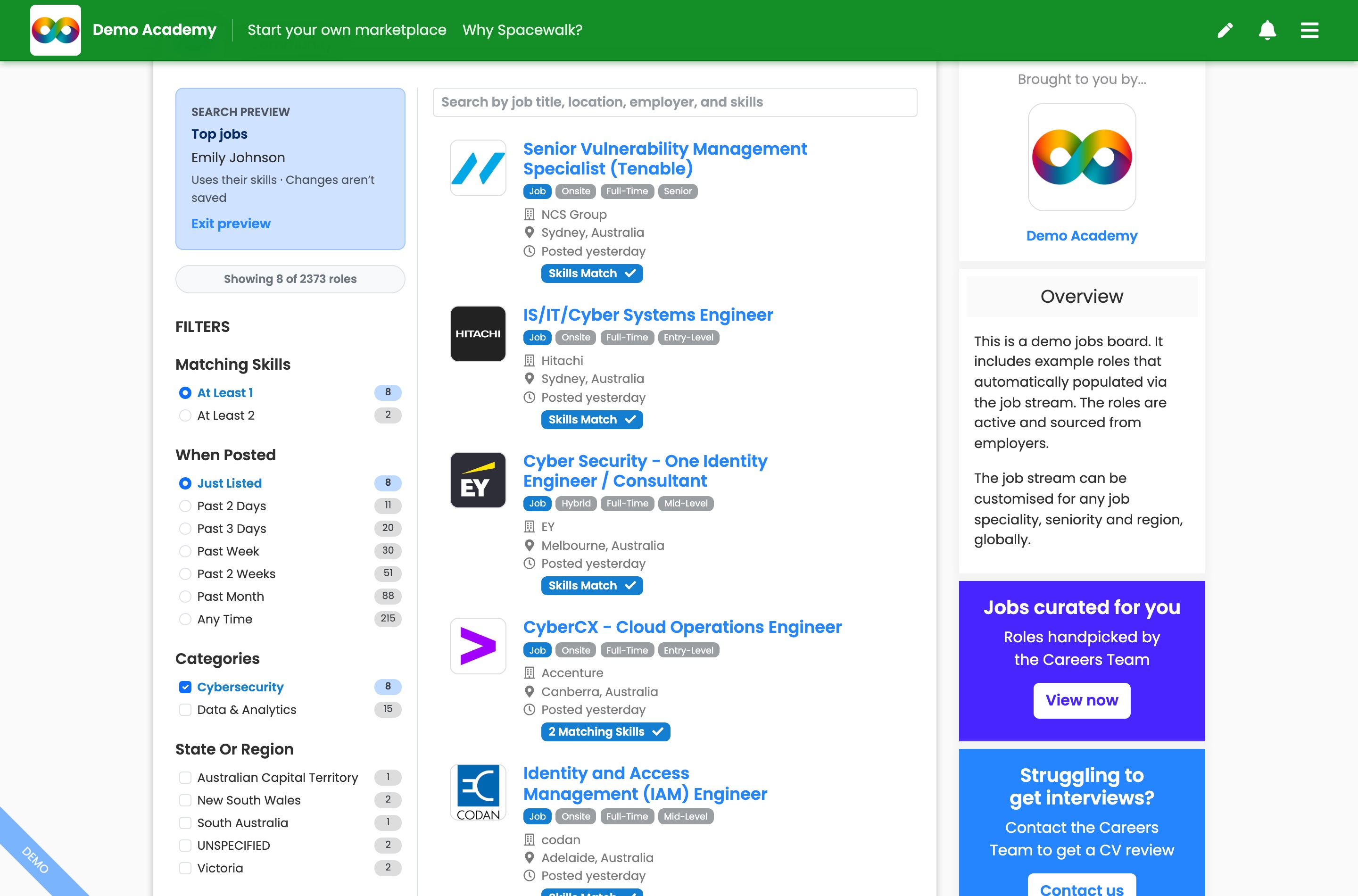
"Search preview" shows the board through the member's saved search and skills. Changes you make here aren't saved.
Decide whether your own staff can be job seekers
Your own employees can look for internal moves without you inviting them as outside members. It is a separate model to inviting external individuals, so turn it on only if internal mobility is something you want to offer.
- Open the menu, then "Manage Company", then "Settings".
- Expand "Advanced" and turn on "Internal staff as job seekers", which gives employees access to internal mobility roles across your company and the marketplaces it owns or belongs to.
- Press "Save".
This one is off unless you switch it on. Press the info button beside "Advanced" before you commit - the help panel explains that employees can apply for roles your company posts and roles in any marketplace your company owns or belongs to, which is not the same thing as inviting external individuals into a single marketplace.
4. Make the board look like yours
Name, description and web address
- Go to "Manage Marketplace", then "Overview".
- Edit the "Marketplace name" and "Marketplace Overview" (the short description members read).
- Set your "Personalised URL" (letters and numbers only) - this becomes your board's web address.
- Press "Save".
Logo and images
- Go to "Manage Marketplace", then "Customisation", then "Branding".
- On the "Hero" tab, upload your "Hero Image" and "Logo", then press "Save".
- On the "Mobile and social" tab, upload your "Mobile and Social Image", which is used on mobile screens, when your link is shared and on the login page, then press "Save".

The "Marketplace branding" help panel explains where each image appears - the wide hero on larger screens, the mobile hero when your link is shared, and fallbacks until you upload your own.
Your header and footer
- Open the menu, then "Manage Company", then "Company", then "Branding". It has four tabs, "Logo", "Header", "Footer" and "Email". Your square company logo on the "Logo" tab is also the default image in the app header. Open "Header" or "Footer" to customise them.
- Use the live "Header preview" to see your changes as you make them. Under "Header logo", choose whether the header shows your square "Company logo" or a "Wide logo" (press "Upload wide logo" first if your artwork is landscape or already includes your name).
- Under "Appearance", set the "Background colour" and "Text colour", and turn off "Show company name next to the image" if your logo already includes it.
- Press "Add link" to add your own header or footer links (each can be toggled "Enabled" on or off), then press "Save".
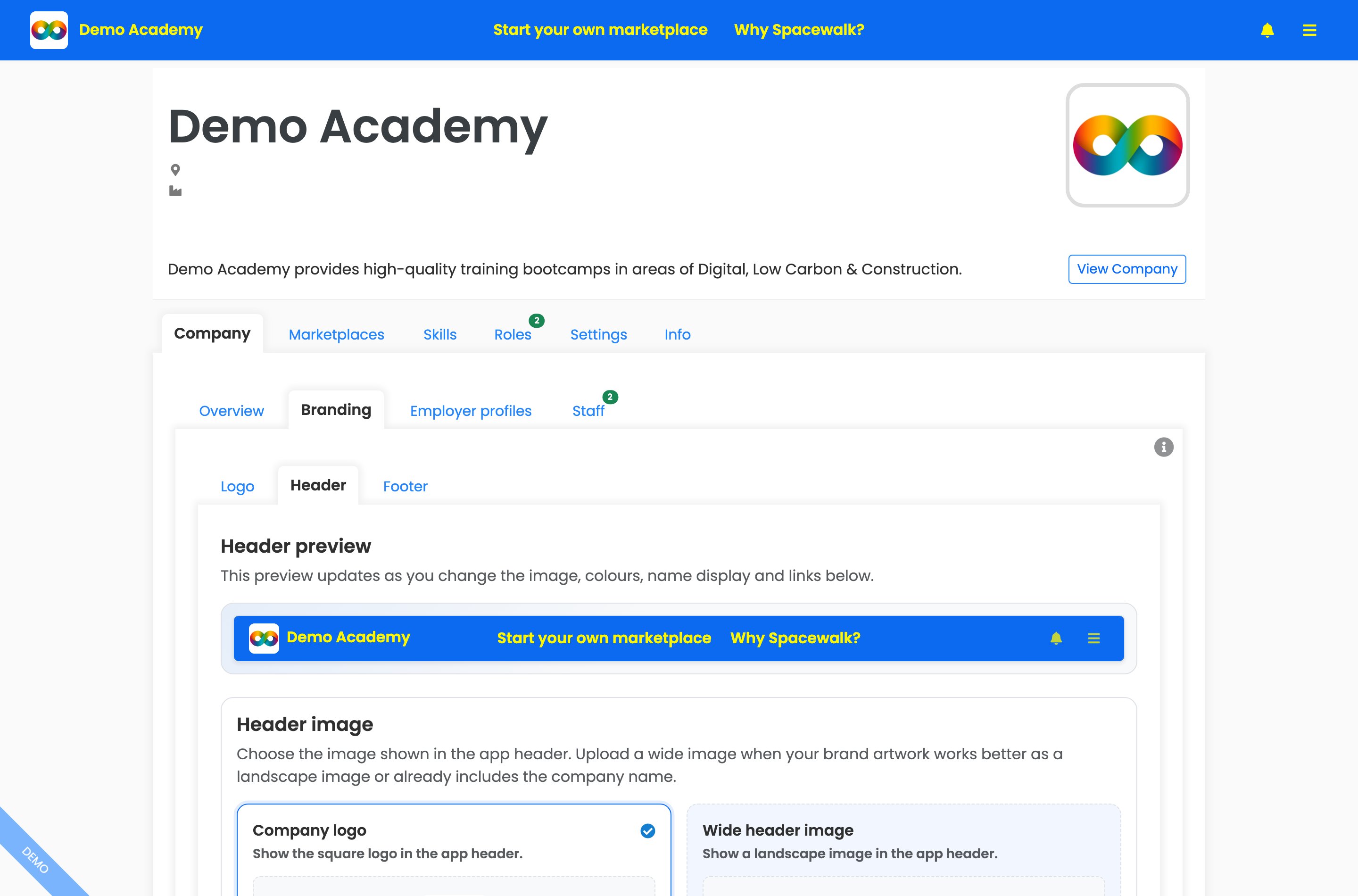
Manage Company, then Company, then Branding, then Header. The live preview updates as you change the image, colours and links.
Choose the sender name on your emails
People are more likely to open an email when they recognise who it is from. You can set the name shown in the From line, for your company and for each marketplace, and see exactly how it will look before you save.
- For your company, open the menu, then "Manage Company", then "Company", then "Branding", then "Email" and fill in the "Company email label". A shorter trading name, employer brand or careers team name works well. Leave it blank to use your company name.
- For a marketplace, go to "Manage Marketplace", then "Customisation", then "Branding", then "Email" and fill in the "Marketplace email label". Leave it blank to use the marketplace name.
- Check the "How this will appear to your recipients" table, which shows the sender name each group of recipients will see, then press "Save".
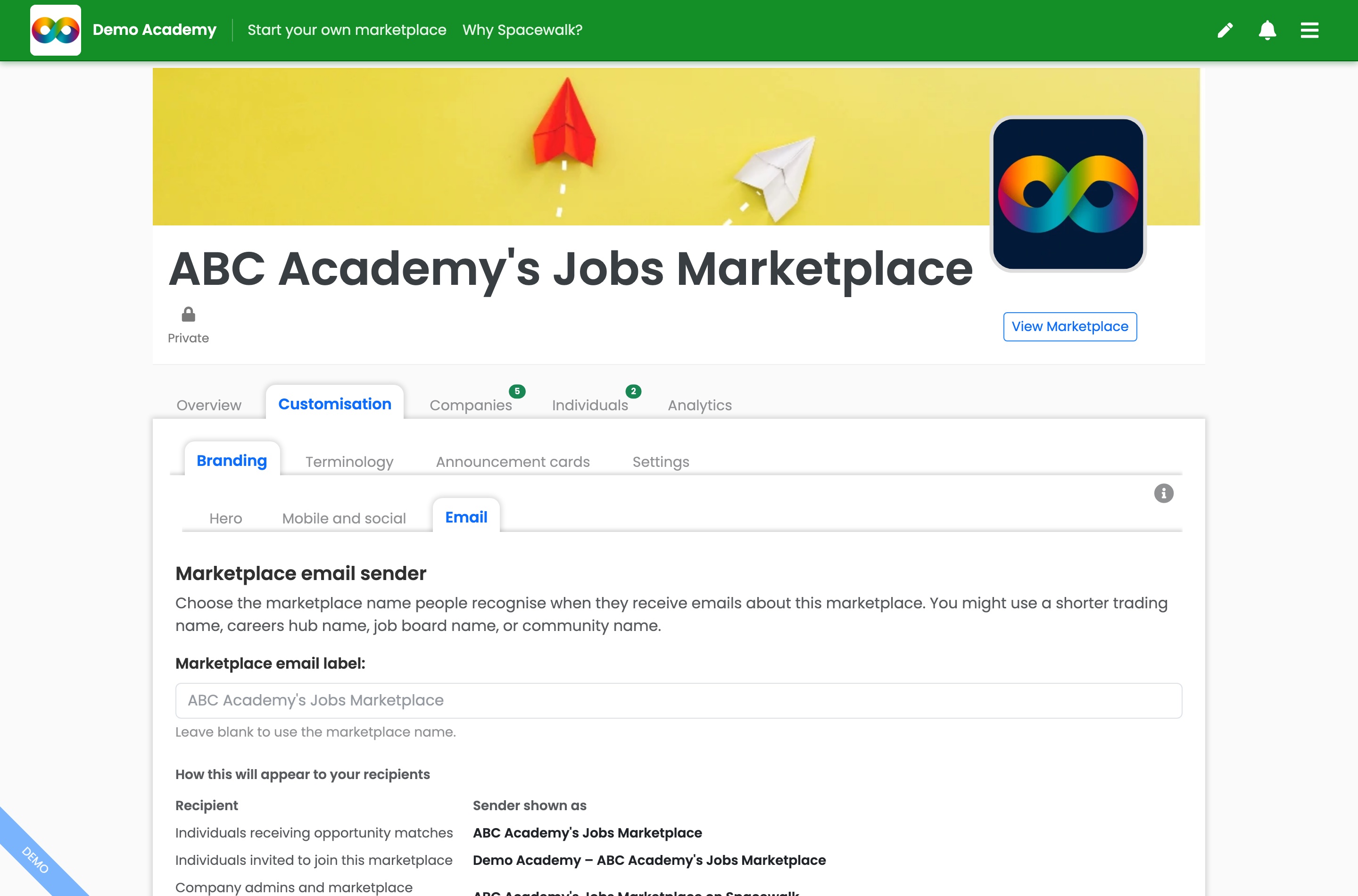
Customisation, then Branding, then Email: set the "Marketplace email label" and check how the sender name appears to each group of recipients before you save.
Some marketplace emails show your company name beside the marketplace name. To change that part, edit your company email label.
Use your own words
- Go to "Customisation", then "Terminology".
- Rename "Opportunities", "Companies" and "Individuals" (singular and plural) to match what your community calls them - for example "Jobs", "Employers" and "Job seekers". Your board and its buttons follow suit.
- Press "Save".
Highlight a timely message
- Go to "Customisation", then "Announcement cards", then "Add announcement card".
- Fill in a "Headline", up to two lines of text, an optional "Button label" and "Button URL" and a "Start date" / "End date". Pick your colours and check the live "Preview".
- Toggle it "Enabled" and press "Save".
Announcement cards sit at the top of your board on mobile and on the right on desktop - good for campaigns, deadlines, webinars or links you want members to see first.
Decide what shows on the board
- Go to "Customisation", then "Settings".
- Turn the "Community" features on or off: "Community Chat", "Featured Roles", "New Roles" and "New Members".
- Set the extras you want: "Preview role details in sidebar", "Hide Closed Roles" and (under "Engagement") the Weekly "Job Stream" Opportunities Email.
- Press "Save".
5. Use custom skills for your own talent pool
Roles and member profiles matched against your own approved skills list - useful if you connect roles to your own talent pool (for example tutor companies, internal talent marketplaces or specialised on-demand agencies). Most boards don't need this - the standard skills library covers general hiring. Turn it on only if you want a specialist or restricted skills list that you control.
Turn custom skills on
- Open the menu, then "Manage Company", then "Settings".
- Expand "Advanced" and turn on "Enable custom skills".
- Choose your own wording if you like - set the "Singular terminology" and "Plural terminology" (for example "subject" and "subjects" for a tutoring business).
- Press "Save". A new "Skills" tab appears in Manage Company.
Build your approved list
- Open the "Skills" tab and press "Add skill".
- Give it a "Skill name" and a "Category" (General, Technical, Tool, Domain, Behavioural, Physical, Qualification, Certification or Human language).
- Leave "Use this skill to trigger match email alerts" on if roles tagged with it should notify matching members.
- Optionally add "Tooltip text" - a short description shown when people hover over the skill in search results.
- Press "Add skill".
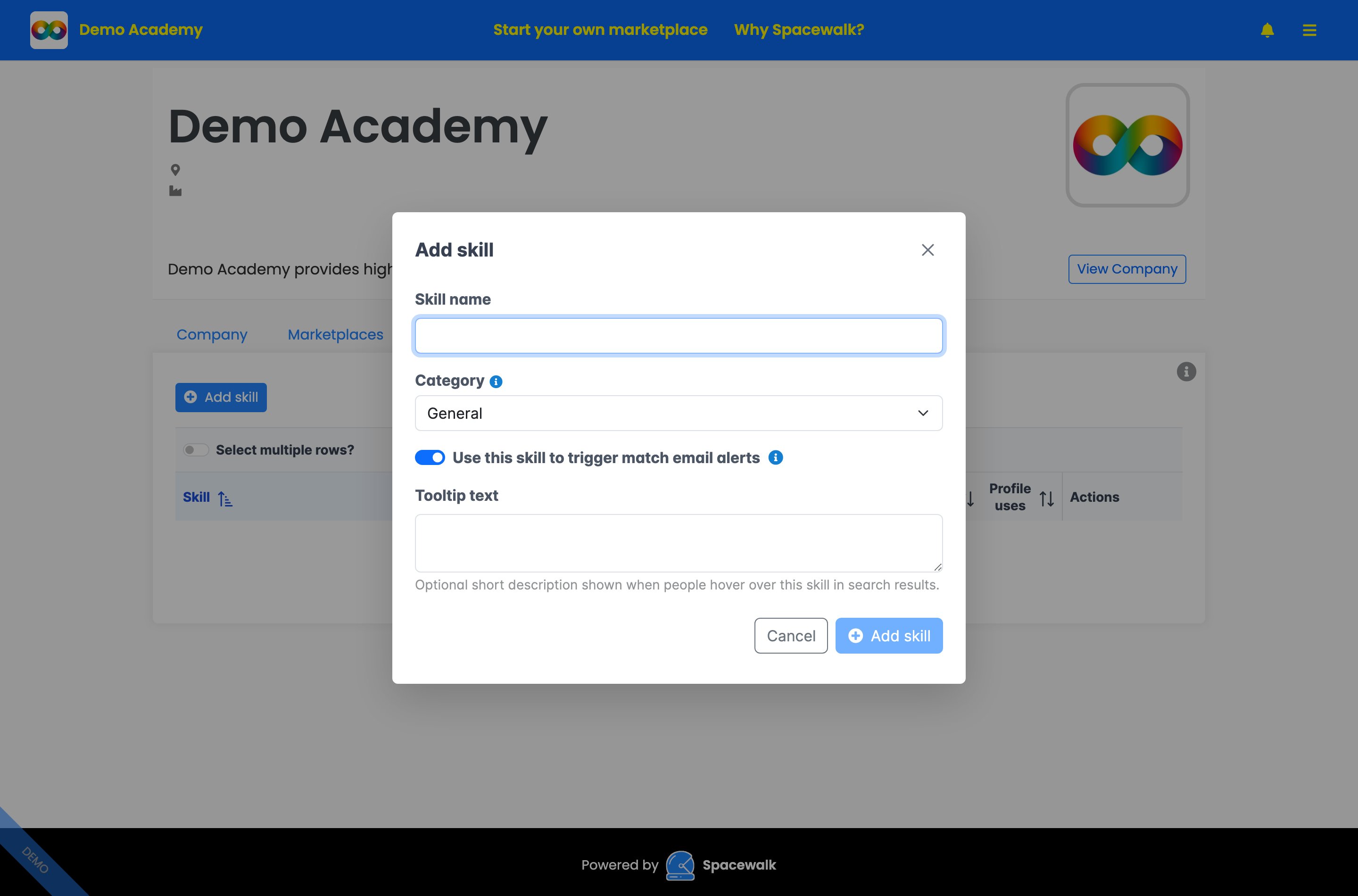
The "Add skill" modal: name the skill, pick a "Category", keep match-email alerts on if you want it to notify members and add optional "Tooltip text".
The Skills table shows where each skill is used - "Role uses" and "Profile uses" - so you can see which skills are doing the work. When posting a role, the "Desired skills" search then draws on your company's own catalogue.
Once the catalogue grows, use "Search custom skills" above the table to find one by name or tooltip, and press "Export" for a copy of the list outside Spacewalk.
Worried about deleting the wrong thing? Press the info button on the Skills tab - its help panel explains that a skill in use is archived rather than deleted (it stays on existing roles and profiles and can be restored at any time), and that renaming a skill doesn't change existing roles or profiles.

The Skills help panel: removing a used skill archives it (restorable at any time), and renaming a skill leaves existing roles and profiles unchanged.
Guide new members to the right skills as they join
Matching only works when people pick skills you actually use. You can now put your catalogue in front of them while they set up, so their profile is useful from day one.
- Open the menu, then "Manage Company", then "Settings" and expand "Advanced".
- Turn on "Show custom skills wizard during marketplace onboarding".
- Press "Save". People you invite to the boards you curate, and people whose join requests you approve, now step through your catalogue by category as they create their profile.
This one needs custom skills switched on first, and it only applies to the marketplaces your company curates.
6. Prove the board's value with numbers
A clear, screenshot-ready picture of activity to share with your stakeholders - in under a minute.
- Go to "Manage Marketplace", then "Analytics".
- Open "Roles" to see "Total Roles", "Active", "Closed", "Employers" and "Applications", plus a sortable table of every role. Filter by "Date posted" and toggle "Include archived?".
- Open "Applicants" to see "Applications", "Applicants", "Roles", "Employers", "Interviews" and "Placements".
- Open "Metrics" to see engagement for the "Last 30 days" and "All time": "Total Visits", "Unique Visitors", "Roles Posted", "Role Views" and "Total Applications".
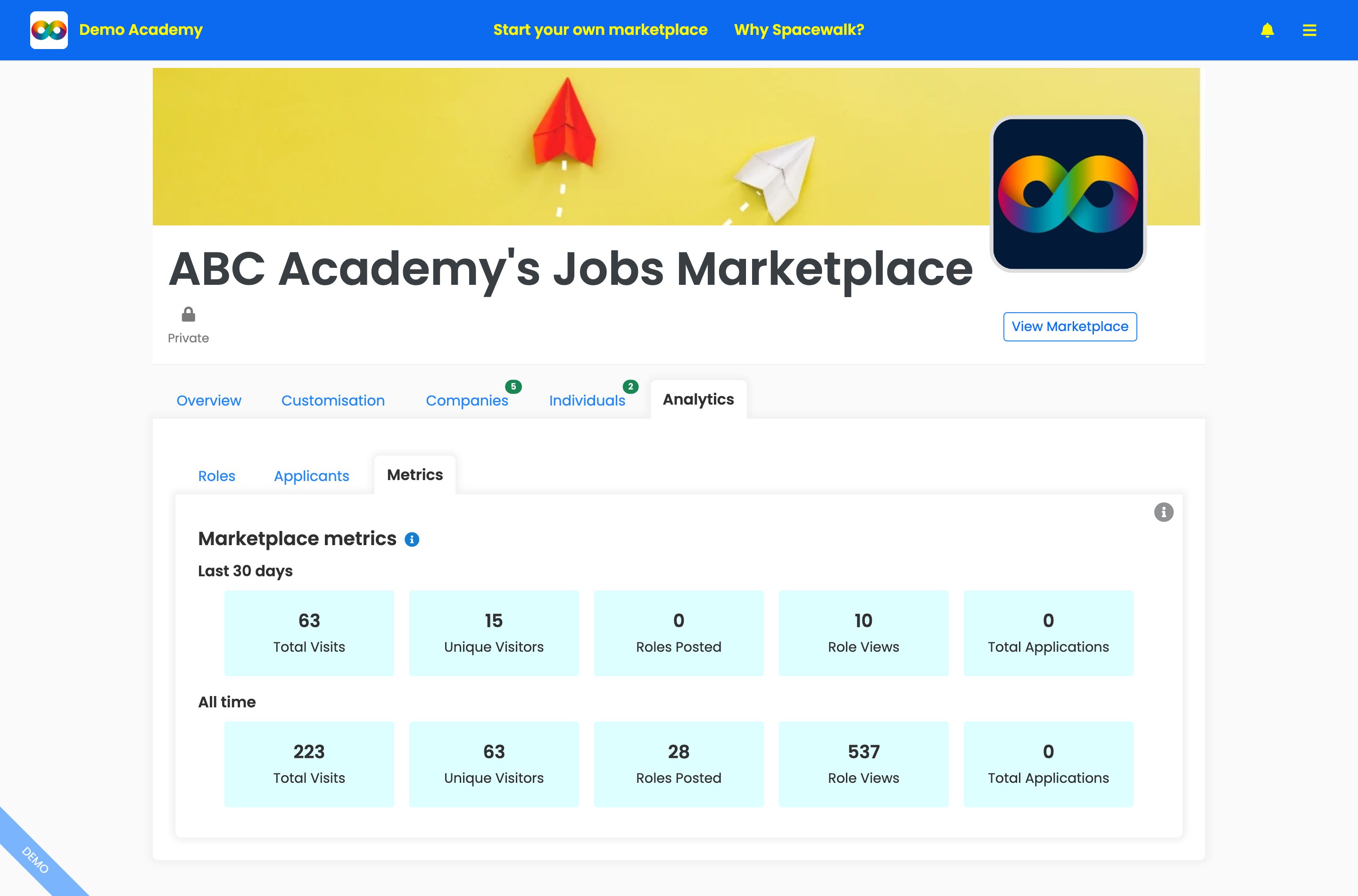
Analytics, then Metrics: engagement for the "Last 30 days" and "All time" - Total Visits, Unique Visitors, Roles Posted, Role Views and Total Applications.
These figures update themselves - so each time a stakeholder asks "is it working?", the answer is already on screen. For a reminder of what each number covers, press the info button on the Metrics view.
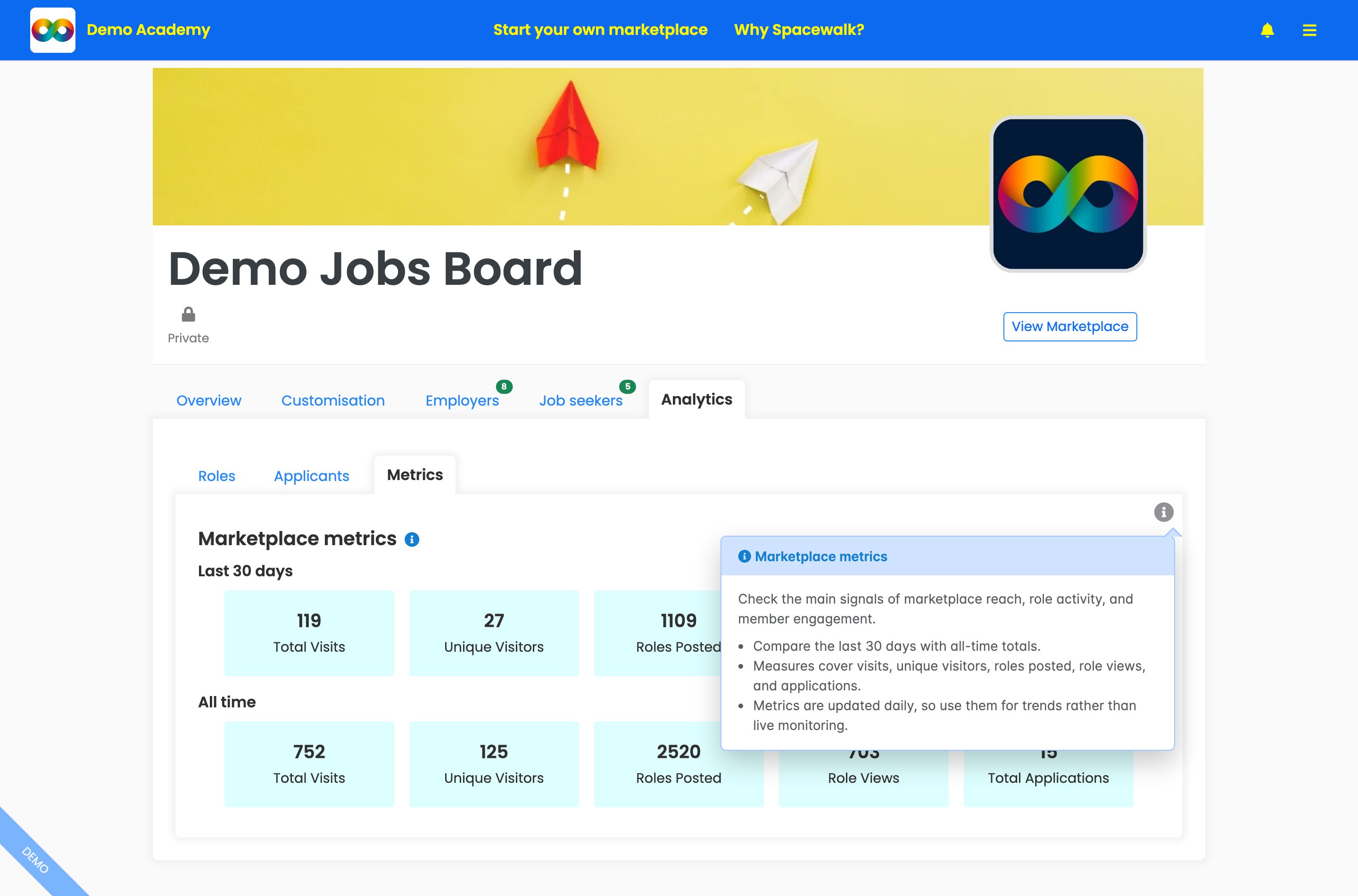
The "Marketplace metrics" help panel explains what the measures cover and that they update daily - ideal for trends rather than live monitoring.
7. Get your data out (1-click export)
Your members, roles and employer profiles are yours to take - downloadable any time.
- Members: go to your members tabs in "Manage Marketplace" and press "Export" (or "Export (All rows)").
- Roles: in "Analytics", then "Roles" press "Export", or in "Manage Company", then "Roles" press "Export (All rows)".
- Employer profiles: in "Manage Company", then "Company", then "Employer profiles" press "Export".
Exports download as a spreadsheet file (CSV), ready to open or share. Nothing leaves your account unless you choose to download it.
8. Add teammates and run more than one board
Add admins (unlimited, free)
- Open the menu, then "Manage Company", then "Company", then "Staff", then "Invite Admins".
- Paste admin email addresses (up to 30 at a time) and press "Send admin invites".
Admins can manage your company, post opportunities, review applications and join or start boards. You can add as many as you like at no extra charge.
See and switch between your boards
- Open the menu and use the "Managed marketplaces" links to jump straight into any board's control room.
- Or go to "Manage Company", then "Marketplaces" to see all your boards (who hosts each and the access level) and manage or duplicate them.
Keep your company profile current
- "Manage Company", then "Company": "Overview" (name, description, country, sector and website), "Branding" (your logo, header, footer and email sender name), "Employer profiles" (the brands you post for) and "Staff" (your admin team).
- "Manage Company", then "Settings" now groups its controls into "Employer and role reach" (employer profiles and whether your roles stay within your own marketplaces), "Restrict role access and sharing controls" (the defaults for restricted roles) and a collapsed "Advanced" section holding custom skills and internal staff as job seekers. Each group has its own info button.
- "Manage Company", then "Roles": every role your company has posted, with "Add Opportunity" and status filters ("Available", "Closed", "Archived", "All"). Once you have more than a handful, use "Search roles" to find one by role, employer or location.
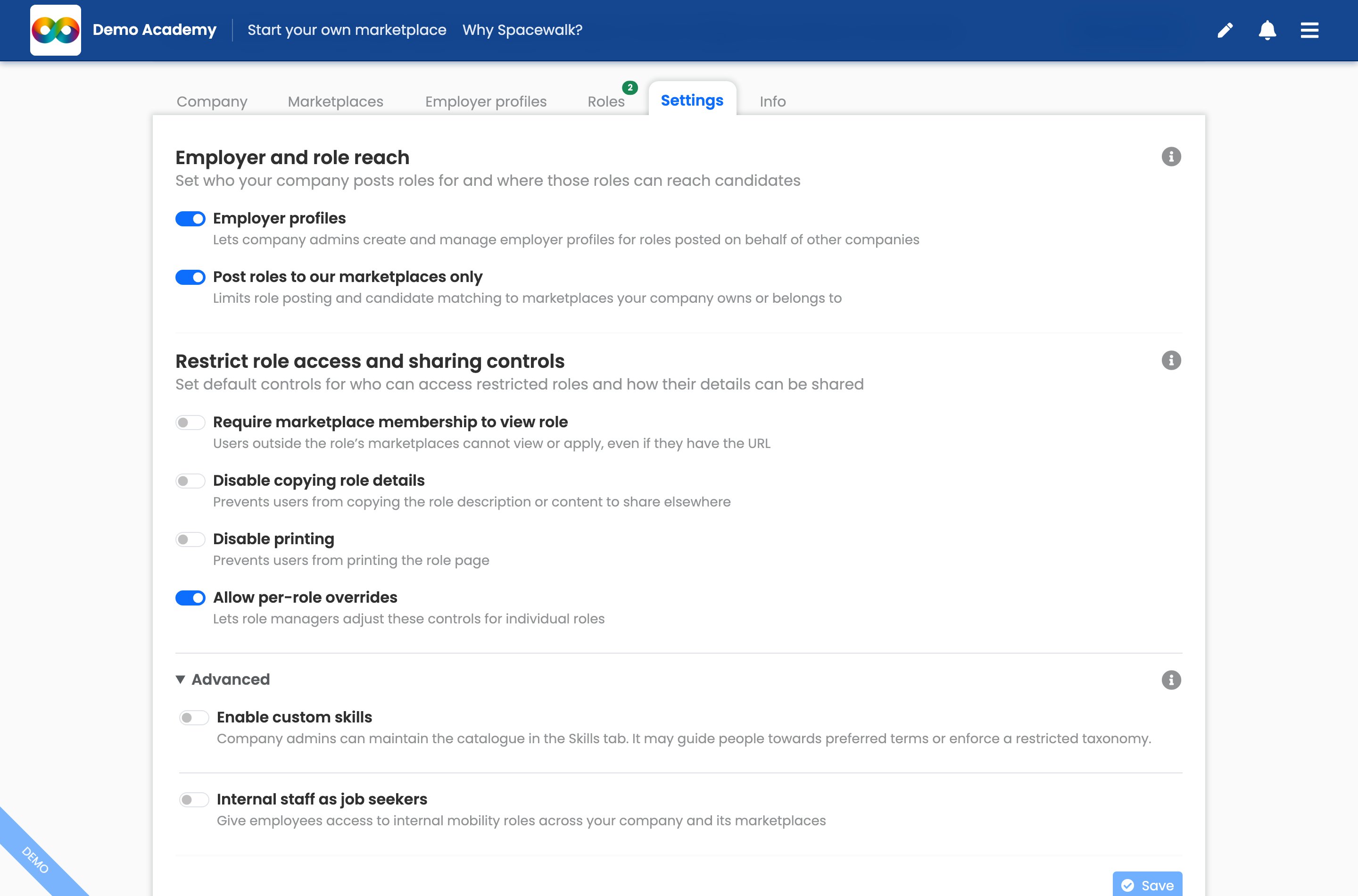
Manage Company, then Settings, with its three groups and the "Advanced" one expanded. Each group has its own info button for a plain-language explanation.
Stuck on anything? Press "Help" on your board or contact your Spacewalk team - including any change to your automatic job stream.
